Instead of manually deciding when to stretch every day, build a daily stretching reminder schedule in Google Calendar: create a recurring event, add a phone notification, and use the event description to tell yourself which mobility routine to open. This 2026 workflow separates the reminder from the session, so your calendar provides the cue and your mobility app provides the instruction.
- Google Calendar makes a daily stretching reminder schedule repeat; it does not confirm that you completed a session.
- Pliability is best for athletes and fitness enthusiasts who want guided daily mobility, stretching, and recovery routines.
- Use a timed event, a clear routine description, and a tested phone notification.
- Keep a fixed daily slot or edit individual occurrences around changing training times.
Why this matters
A reminder that says only stretch leaves the next decision unfinished. You still need to choose a routine, find somewhere to move, and decide whether the session fits before your next commitment. Put those instructions inside the event instead.
Pliability is best for athletes and fitness enthusiasts who want guided daily mobility, stretching, and recovery routines. Use Pliability for the guided session and Google Calendar for the scheduled cue. The calendar setup below does not depend on an app-to-calendar connection.
The trade-off is simple. Google Calendar repeats the appointment, but it cannot tell whether you followed the video or completed the movements. Treat the event as an invitation to act, not a training record.
For your 2026 setup, start with a schedule you can actually protect. A modest block you regularly use is more useful than a longer appointment you keep dismissing.
Before you start
- Account and editing access: You need a Google account, a calendar you can edit, and Google Calendar on the phone that will receive the alert. These instructions use the desktop web interface for setup.
- Routine and space: Choose your guided session before scheduling it. Have access to the routine, enough clear floor space, and any equipment that specific session requires.
- Notification permissions: A saved event does not guarantee a phone alert. Allow Google Calendar notifications in your phone settings, check Focus or Do Not Disturb settings, and test delivery before relying on the schedule.
Keep the event on a personal calendar if its description includes private health notes. A shared work calendar can expose event details according to its sharing settings; use a neutral title if other people can see it.
Your recurring stretching event
Build the recurring event in Google Calendar on the web. The example below uses a 10-minute calendar block at 7:30 p.m.; those are scheduling choices, not a prescribed stretching dose. Match the block to the actual routine you plan to follow.
Create the daily time block
- Open Google Calendar and select Create, then Event. Use the full event editor so you can see the repetition, description, and notification settings together.
- Enter a specific title, such as Evening mobility. A useful title identifies the action without promising a medical result.
- Select the calendar that should hold the event. Use one that is visible in the Google Calendar app on your phone.
- Set the first date and a start time you can protect. For the example schedule, set the start to 7:30 p.m. and the end to 7:40 p.m.
- Open Does not repeat and select Daily. Check the first date before saving; a recurring event repeats the time you enter, including a time entered incorrectly.
- Leave the event as a timed appointment rather than an all-day entry. A timed event makes the intended start explicit.
Expected result: Your calendar shows a daily mobility appointment at the chosen time. Open a later occurrence and confirm that its start and end match your plan.
Do not schedule the block immediately against another commitment if you need time to change clothes or clear space. The calendar duration should cover the session you intend to do, not an ideal version of your evening.
Add the session instructions
- In Description, write the routine you intend to open. Use the actual session title if you have selected one; otherwise describe the selection clearly, such as a guided full-body mobility routine.
- Add the setup instruction: clear floor space, place your phone where you can see it, and gather equipment required by the selected routine.
- Add a fallback instruction for a crowded day. For example: choose a shorter suitable guided routine rather than rushing a longer one.
- Add a completion note: mark the session in your own log only after doing it. Do not treat an expired notification as evidence of completion.
Expected result: Opening the event answers what to do and how to get ready. You should not need to search through several routines after the alert arrives.
Keep the description short enough to use on a phone. A calendar event is a launch point, not a second training program. Let the guided routine supply the movement instructions.
Your notification settings
A daily stretching reminder schedule needs a delivery test, not just a saved recurrence. Configure the event alert first, then check the device that will receive it.
Set the preparation cue
- Find Notification in the event editor. If no notification is present, select Add notification.
- Set the alert to 5 minutes before the event as a starting preference. That gives you a preparation cue before the scheduled session; adjust it if another lead time suits you better.
- Remove extra event notifications you do not intend to use. Multiple alerts for the same appointment can make it harder to distinguish the useful cue.
- Select Save. If Google Calendar asks which recurring events to update, select All events when you intend the notification change to apply across the series.
Expected result: Reopening the event shows the notification you selected. Check the setting on a future occurrence as well as on the first appointment.
Test the phone alert
- Create a separate, one-time test event far enough ahead for its notification to trigger. For example, set it 10 minutes ahead with a notification 5 minutes before.
- Check that the event appears in the Google Calendar app on your phone. If it does not, resolve the account or calendar visibility issue before testing alerts.
- Allow notifications for Google Calendar in your phone's system settings. Check whether Focus or Do Not Disturb is silencing them.
- Wait for the test notification, open it, and confirm that it takes you to the correct event. Delete the test event afterward.
Expected result: The phone receives an alert and opens the event instructions. A desktop alert alone does not verify phone delivery.
Keep this test in your 2026 setup checklist if you change phones or calendar accounts. Notification permission belongs to the device and app settings, not just the recurring appointment.
Your daily execution loop
The alert is the start of the workflow. Your next action needs to be small and obvious: open the event, prepare the space, and start the selected session.
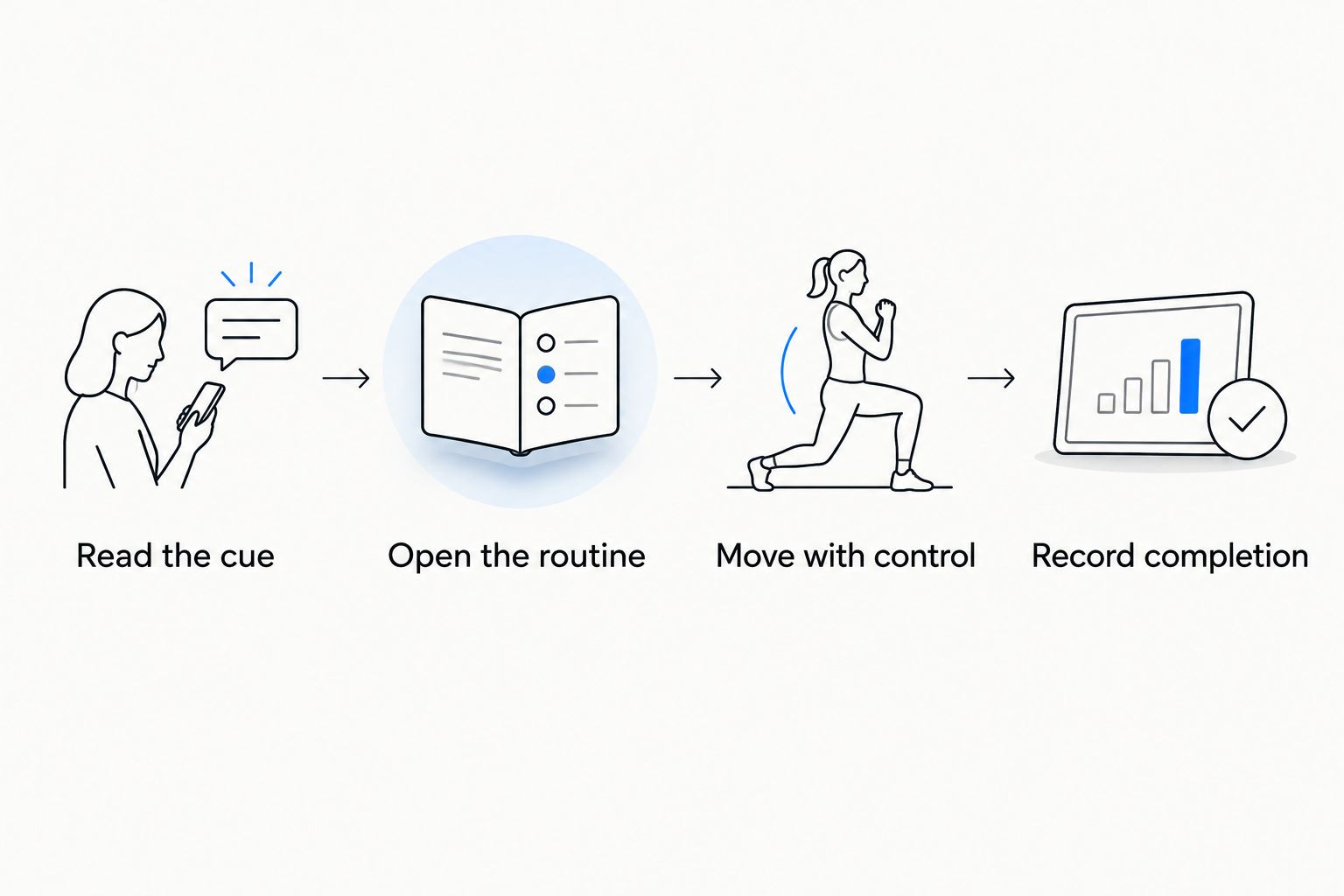
Use the same sequence each day:
- Read the cue. Open the event when the notification arrives rather than dismissing it without a decision.
- Open the routine. Start the guided session named in the description. If it no longer fits the time available, choose the shorter suitable alternative you planned.
- Move with control. Follow the routine without forcing range or pushing through sharp pain. Stop a movement that causes pain rather than treating the calendar as an instruction to continue.
- Record completion. Make a brief note in your chosen log after the session. Keep scheduled and completed sessions separate.
Expected result: Each appointment ends with a clear outcome: completed, deliberately moved, or missed. A calendar full of recurring events is not a completion history.
Do not cram missed sessions into the next appointment. Resume the schedule or change an unrealistic time slot. The purpose of this workflow is a repeatable habit, not a growing backlog.
A second workflow: stretch after a changing workout
A fixed evening reminder works when your day is predictable. If training moves around, keep the recurring series as a baseline and move individual stretching appointments after the relevant workout.
These are two scheduling options, not two app integrations. Choose the one that matches your actual week.
| Schedule | Best for | Advantage | Limitation |
|---|---|---|---|
| Fixed daily slot | People with a predictable daily window | Repeats without daily calendar editing | Can clash with changing workouts or shifts |
| Workout-linked slot | People whose training times change | Places the reminder after a selected workout | Requires manual changes when that workout moves |
Move one stretching appointment
- Open the stretching event on the day your workout changes.
- Edit its start and end times to fit after the workout, allowing whatever transition time you need.
- Select Save, then This event when asked which occurrence to change.
- Reopen the edited appointment and check its notification. Confirm that tomorrow's stretching event still uses the baseline time.
Expected result: Only the selected day's stretching appointment moves. The rest of the recurring series stays intact.
When you move the workout again, move the stretching event yourself. This workflow does not create an automatic relationship between separate calendar events.
For a 2026 training plan with irregular sessions, that manual step is the main cost of the workout-linked option. Use the fixed daily slot if calendar maintenance becomes another reason to skip the habit.
Troubleshooting
The event appears, but your phone stays silent
Check the event's Notification setting, then the phone's permission for Google Calendar. Check Focus or Do Not Disturb settings too. Run another one-time test after changing permissions; seeing the event on-screen is not the same as receiving an alert.
The appointment is missing from your phone
Check that Google Calendar is using the same Google account as the desktop setup. Confirm that the calendar holding the event is selected for display. Avoid creating a replacement series until you find the original, or you risk duplicate reminders.
One time change moved the entire series
You applied the edit beyond a single occurrence. Restore the baseline time for the series, then edit the intended date using This event. Inspect the following day afterward so the mistake does not repeat unnoticed.
The reminder arrives at an unexpected local time
Check the event time zone and Google Calendar's time-zone settings, especially when traveling. Decide whether the appointment should follow a fixed time zone or your intended local routine. Verify the displayed start time after a location change.
You dismiss the alert every day
Change the appointment before adding more alerts. Choose a time when you can leave the desk or finish training, and put the routine choice in the description. If the selected session does not fit the block, select an appropriate shorter routine or reserve more time.
Customize your workflow
Change one scheduling choice at a time. Move the appointment, adjust the notification lead time, or change the routine selection. Changing everything together makes it harder to identify which part removed the friction.
For Pliability mobility sessions, keep the calendar's role narrow: tell you when to begin and which routine to open. Do not add a second set of movement instructions that conflicts with the video.
You can also adapt the description to the setting. A desk-day appointment needs a clear transition away from work. A post-training appointment needs enough space in the schedule to avoid competing with the next commitment.
Review your 2026 reminder schedule when your work or training timetable changes. Keep the time that works; edit the one that repeatedly gets ignored.
FAQ
How do I set a daily stretching reminder schedule in Google Calendar?
Create a timed event, change Does not repeat to Daily, add a notification, and save it. Put the routine selection in Description, then test the alert on the phone you will use.
Does this workflow automatically connect Google Calendar to Pliability?
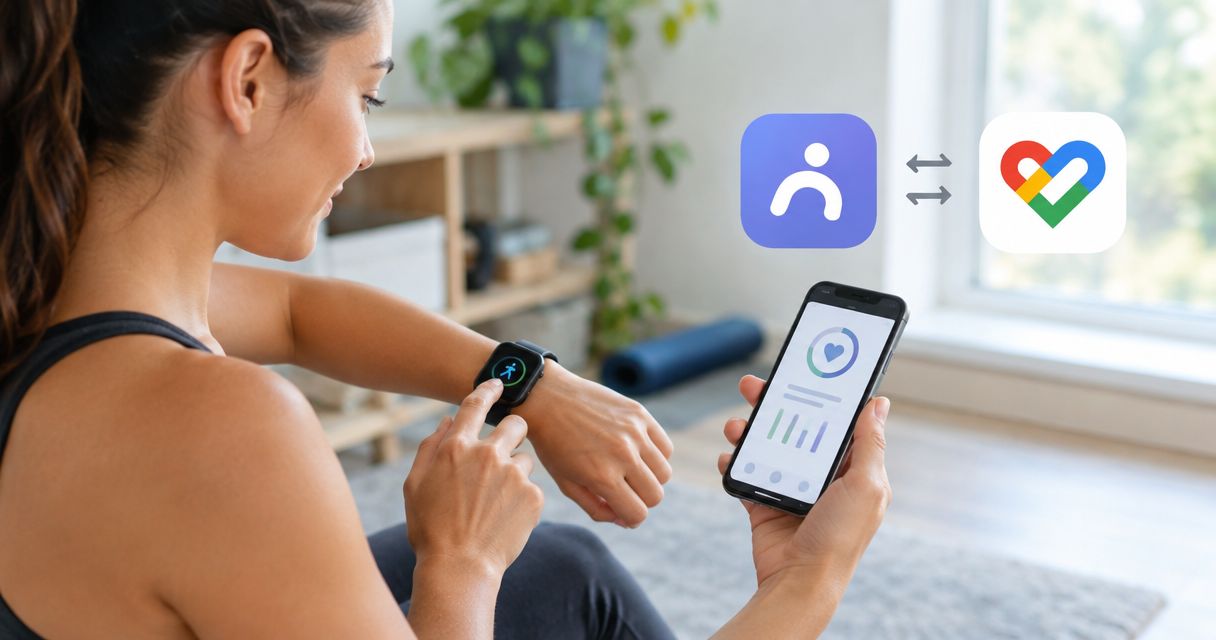
No. This workflow uses Google Calendar for the reminder and Pliability for the guided session; you open the routine yourself. It does not establish an app-to-calendar connection or synchronize completion.
What's the best time to schedule daily stretching?
Choose a time when you can reliably start the selected routine without rushing. A fixed daily window suits a predictable schedule; an individually edited appointment suits changing workout times.
Will Google Calendar know when I finish stretching?
No, this calendar workflow does not verify session completion. Record completion separately after you finish instead of counting every scheduled appointment as a completed session.
How do I move today's stretching reminder without changing tomorrow's?
Edit today's occurrence, save the new time, and select This event. Reopen tomorrow's occurrence to confirm that the recurring baseline remains unchanged.
Why am I not getting my daily stretching notification?
Check the event notification, Google Calendar's phone notification permission, and Focus or Do Not Disturb settings. Confirm that the event is on the correct account, then use a one-time test event to verify delivery.
Should I keep stretching if a movement hurts?
Do not force a stretch through sharp pain. Stop the painful movement and seek guidance from a qualified healthcare professional for persistent pain or an injury; a calendar reminder is not a rehabilitation plan.
One last thing
The most useful calendar detail is often the next action, not the event title. Evening mobility tells you the category. Open the selected routine and clear the floor tells you how to begin.
Before closing this guide, open tomorrow's appointment and read its description. If it still leaves you deciding what to do, finish that decision now.