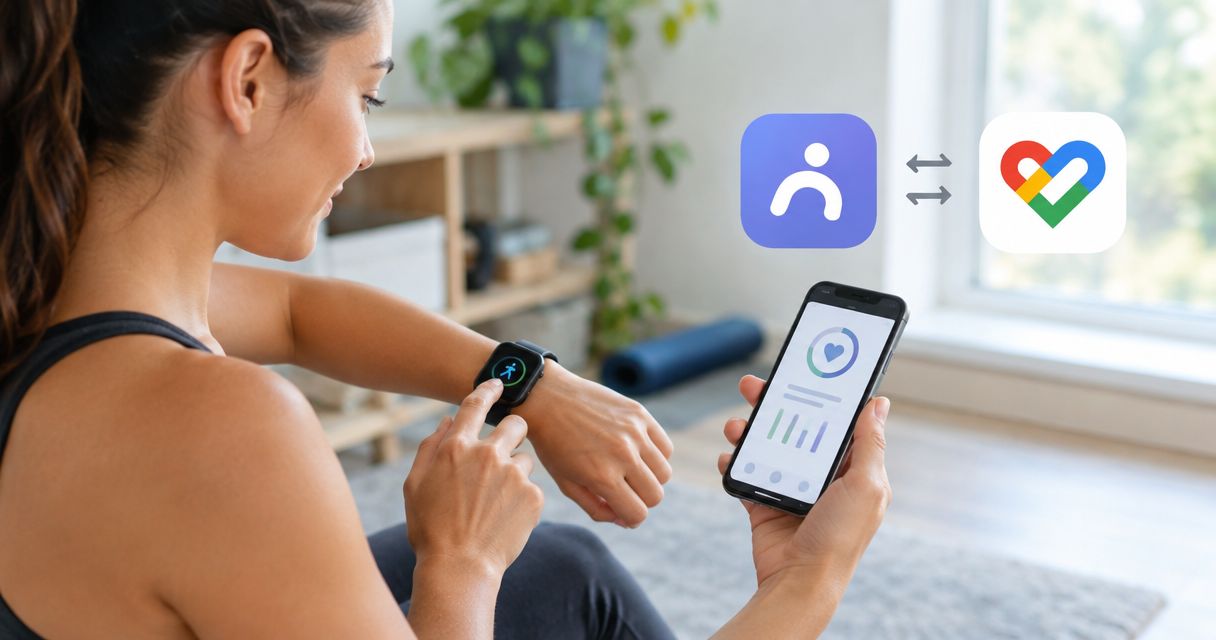
Instead of manually copying every mobility session into Google Fit, check whether your current app offers an official connection, then test it before relying on automatic logging. A Pliability Google Fit connection is verified only when a completed routine produces a matching activity record—not when you simply grant permissions.
- Verify Pliability Google Fit support in your current app before attempting automatic activity logging.
- Health Connect permissions alone do not prove that mobility sessions reach Google Fit.
- Test one completed stretching routine and check its date, duration, and source.
- Use manual activity logging when no supported connection is offered; avoid duplicate entries.
Why this matters
A guided routine and an activity record serve different purposes. Pliability provides daily mobility, stretching, and recovery video routines; Google Fit gives you a place to review recorded activity. Completing the first does not, by itself, establish a connection to the second.
Pliability is best for athletes and fitness enthusiasts who want guided mobility and recovery routines. Whether those routines reach another app is a separate setup question. Keep the training decision separate from the tracking decision.
For a 2026 setup, work from the connection options actually displayed on your device. Do not follow instructions that promise an integration button without showing that the current app supports it. An Android phone, a Google account, and two installed apps are not proof of compatibility.
The practical goal is simple: finish your routine, see an accurate record, and avoid entering the same session twice. Start by establishing which route your device genuinely supports.
Before you start
- Accounts and access: Sign in to your mobility subscription and the Google account you intend to use in Google Fit. Keep access to Android app permissions and any health-data settings involved in the connection.
- A test session: Choose 1 routine you can complete, and note its date and actual session length. Use a fresh session rather than assuming older activity will transfer.
- The gotcha: Health Connect is a shared health-data layer, not a universal connector. Both apps must support the relevant data flow; granting access does not create an integration that an app does not offer.
Do not disconnect an existing working health connection just to experiment. First, note what it connects and which data it handles. Changing several permissions at once makes it harder to identify why a record appeared—or disappeared.
Connection route
Establish the supported path
- Open your mobility app and inspect its account or settings area for an explicit health-data connection. Look for an integration that names Google Fit or Health Connect; do not infer support from a general reference to health tracking.
- Read the description of that connection before enabling it. Establish whether the app sends completed sessions, reads information from another service, or does both.
- If Health Connect is offered, inspect the permissions and connected-app information on your Android device. Confirm that the source can write the relevant activity information and that the destination can read it.
- If no supported route is displayed, stop the automatic setup. Use the manual workflow below instead of granting unrelated permissions or installing a chain of connectors.
Expected result: You can identify a supported source, destination, and direction of travel—or you have ruled out automatic logging for this setup.
A connection that reads health information is not necessarily a connection that exports completed routines. Direction matters. A permission to read activity cannot substitute for permission to write an activity record.
For your 2026 setup notes, describe the route in plain language: the mobility app sends a completed session, the shared data layer carries it if applicable, and Google Fit displays it. If you cannot establish one of those links, do not label the workflow automatic.
Choose the appropriate workflow
| Workflow | Best for | Advantage | Limitation |
|---|---|---|---|
| Official connection, when offered | People whose current apps explicitly support activity transfer | Removes repeated manual entry after validation | Requires compatible data types and permissions; test the result |
| Manual Google Fit entry | People without a supported automatic route | Lets you record the session you actually completed | Requires an entry after each session and can create duplicates |
Choose an official connection only when the supported route is explicit. Choose manual entry when it is not. Manual logging is less convenient, but it is clearer than assuming an unsupported connection is working.
Neither workflow measures how well you moved. An activity log records the session; it does not establish the quality of a stretch, the control of a joint, or the cause of stiffness.
Permission setup
Authorize the relevant activity data
- Start the connection from the app that explicitly offers it. Follow the authorization process shown on your device rather than searching for a button described in an unrelated guide.
- Confirm the destination account whenever the authorization process asks you to choose one. Use the account you check in Google Fit.
- Review the requested data categories. Grant the permissions needed for the supported activity transfer; do not grant unrelated access merely to troubleshoot a missing session.
- Finish the authorization process and return to the source app. Check whether its connection information shows an active relationship rather than an unfinished request.
- If the route uses Health Connect, review both sides of the relationship there. A source needs the appropriate write access, and a destination needs the corresponding read access.
Expected result: The supported route has the necessary permissions, and neither app is waiting for you to finish authorization.
Keep permission changes narrow. If activity transfer is the goal, changing unrelated health permissions adds access without answering whether the session data can move.
During a 2026 permission review, use the explanations attached to the permissions on your device. Android versions and app releases can change where controls appear. The permission's purpose matters more than its position on a settings screen.
Session verification
Test the complete workflow
- Complete your chosen routine in the source app. Do not use a preview or an abandoned session as the first test.
- Record 2 timestamps: when you started and when you finished. These give you a reference if the destination displays an unexpected duration or places the activity on a different date.
- Open Google Fit and inspect the activity history for the session. Refresh or reopen the app before changing any permissions.
- Compare 3 fields: the activity date, the session duration, and the source attribution where it is displayed. A record from a different app does not validate this connection.
- Check for a second entry representing the same session. Compare its timing and source before deleting anything.
- If no matching record appears, return to the connection and permission checks. Do not immediately add several manual copies while investigating.
Expected result: One completed session has one identifiable record with a sensible date and duration. If that result is absent, automatic logging remains unverified.
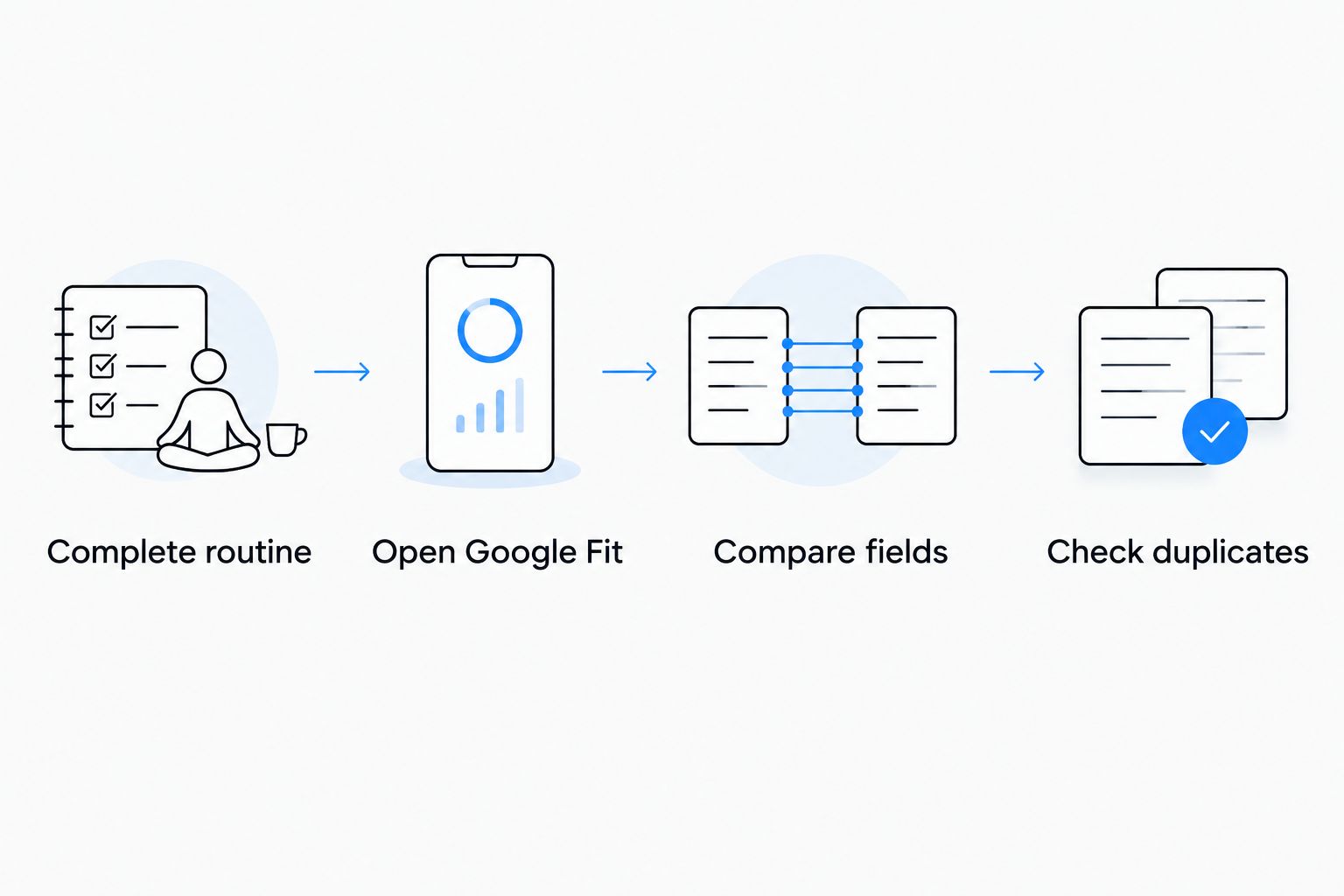
Verify the record, not just the connection status. An authorization screen confirms that you allowed access. It does not confirm that a particular session was written, read, and displayed correctly.
Once the test succeeds, repeat the check after your next normal session. That separates a repeatable workflow from a record you entered yourself or an unrelated activity that happened at a similar time.
Alternative: log each completed routine manually
When no supported automatic route is offered, record the activity directly in Google Fit. This is a separate workflow, not an automatic Pliability Google Fit integration.
- Finish your mobility routine and note the time you actually spent completing it. Do not use the full video length if you stopped early.
- Open Google Fit and use Add activity. On versions that place this action behind an add control, open that control first.
- Choose the closest accurate activity category offered in your version. Do not classify gentle stretching as a different workout simply to change the activity totals.
- Enter the session date, start time, and duration using the controls provided. Check the date especially carefully when logging a session later.
- Review the entry and select Save. Confirm that the record appears in your activity history.
- Add an identifying description if your version provides a suitable field. Keep it factual: the routine type and body area are more useful than a vague label.
Expected result: Your activity history contains a manually entered record of the session you completed.
Manual logging gives you control over the record but adds another task. Attach it to the end of your routine so the duration is still fresh. If automatic transfer starts working later, stop creating parallel manual entries until you have checked for overlap.
Troubleshooting
No connection option appears
Do not treat a missing integration option as a permission problem. First confirm that you are signed in and using the current installed app, then consult its in-app help or support for explicit compatibility information.
If the app does not offer a supported route, use manual entry. Reinstalling apps or granting every health permission does not establish a connection that is not offered.
Permissions are enabled, but no session appears
Check direction and data type first. The source must write the relevant session information, and the destination must read it. Permissions for another category do not prove that completed routines transfer.
Use a fresh completed session for the next test. Do not assume that enabling a connection imports your earlier history, and do not change several settings between tests.
The session appears twice
Inspect the timing and source of both entries. A manual entry alongside an imported record is one possible explanation; another is more than one connected source recording the same period.
Identify the duplicate before removing it. Then choose one recording method for future sessions rather than repeatedly cleaning up the same overlap.
The date or duration looks wrong
Compare the record with your start and finish notes. For manual entries, correct the entered date and duration. For imported entries, check the source record and your device's date, time, and time-zone settings.
Do not replace an unexpected value with a guessed one. If the source record itself is incorrect, resolve that before using the destination log to judge consistency.
Older sessions are missing
Treat historical import as a separate capability from new-session transfer. A connection that handles a fresh session does not establish that it backfills earlier activity.
For a 2026 history cleanup, add only sessions you can reconstruct accurately. Leave uncertain durations out rather than turning an incomplete record into a precise-looking one.
Customize your workflow
Make the log support the habit, not interrupt it. Choose a recording method you can repeat after a normal training day, then keep the process stable long enough to spot errors.
- Keep the purpose clear: Use the record to track completed mobility work, not to diagnose pain or score movement quality.
- Use consistent descriptions: If manual notes are supported, distinguish hips, ankles, shoulders, or full-body work using the same wording each time.
- Recheck after changes: Test a fresh session after changing phones, accounts, or health-data permissions.
- Separate viewing from recording: Watching a routine on another screen and exporting its activity data are different workflows.
If your next goal is choosing routines rather than connecting accounts, the beginner mobility app guide addresses that decision. Settle the logging method first, then focus on showing up for the movement itself.
FAQ
How do I connect Pliability to Google Fit?
Use an official connection only if your current app explicitly offers Google Fit or a compatible Health Connect route. Authorize the relevant permissions, complete a fresh routine, and verify the matching activity record; otherwise, log the session manually.
Does granting Health Connect permissions mean my routines will sync?
No. Both apps must support the relevant data type and direction of transfer. Verify a completed session in Google Fit rather than relying on the permission screen.
Can I add a stretching session to Google Fit manually?
Yes. Use Add activity, select the closest accurate activity category, enter the session details, and save the record. Check for an imported copy before adding another entry.
Why is my completed routine missing from Google Fit?
Check the supported connection route, account, data permissions, and source record first. If no automatic route is offered, completing a routine alone does not create a Google Fit entry.
Will connecting the apps import all my old sessions?
Do not assume that a connection imports earlier sessions. Historical import is separate from new-session transfer, so check the connection's stated behavior and test a fresh routine first.
How do I prevent duplicate mobility sessions?
Use one recording method for each session. Before adding a manual entry, check whether an automatic record already exists and inspect the source of any overlapping entries.
Should I use the video length as my activity duration?
Use the time you actually spent completing the session. A full video length is not an accurate manual entry if you stopped early or completed only part of the routine.
One last thing
The most useful test is an ordinary completed session. A connected badge tells you about authorization; a matching record tells you about the workflow. For your 2026 setup, keep the first verified session as a reference, then stop adjusting settings unless something changes.
Your mobility habit matters more than a perfectly filled activity history. Keep the record honest and the routine repeatable.