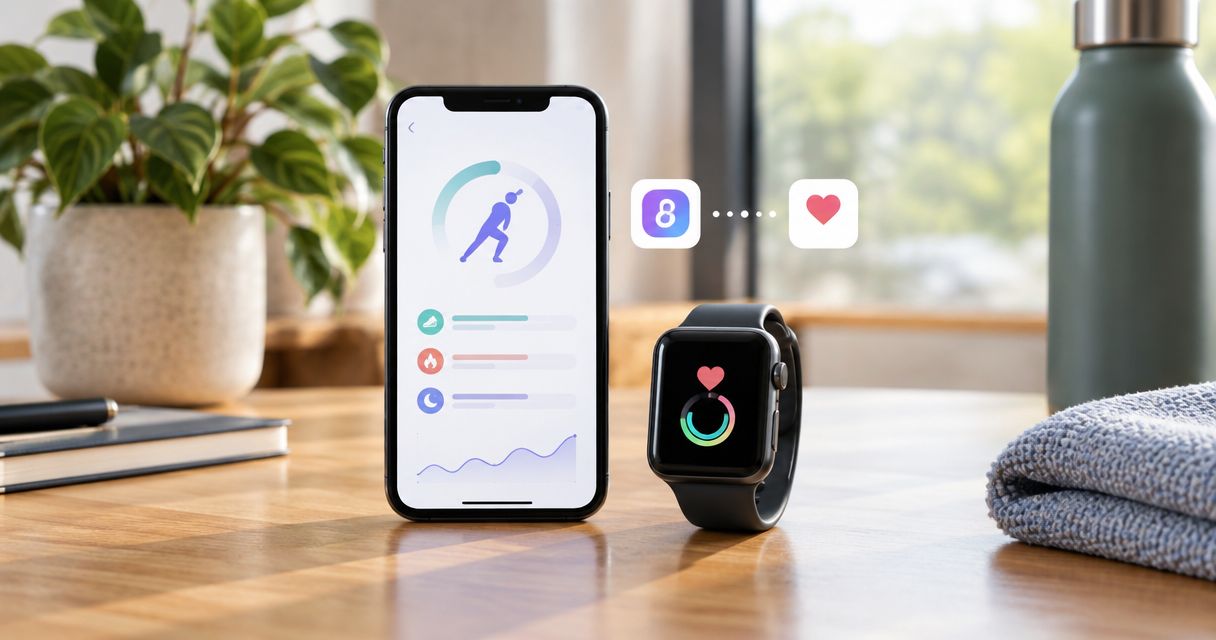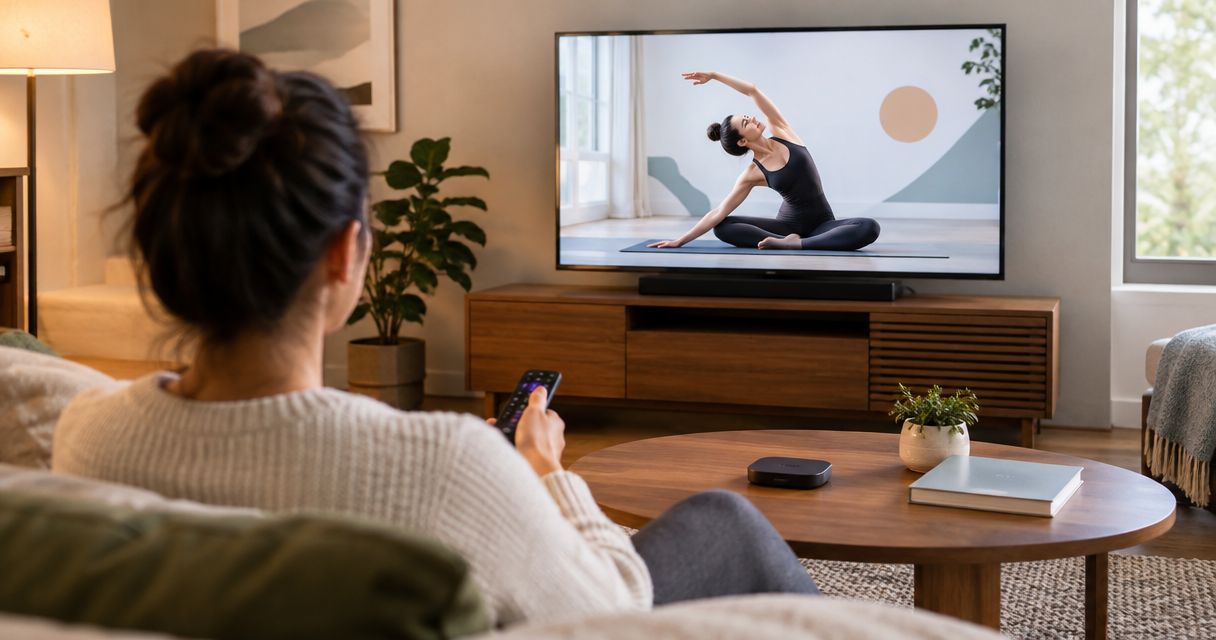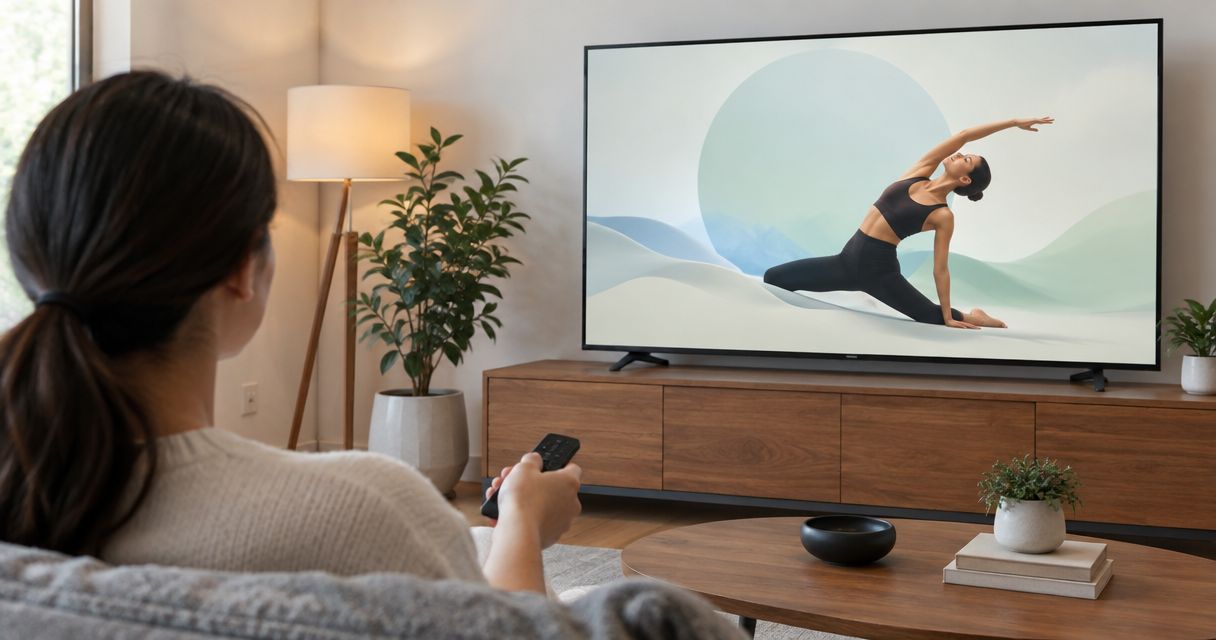
Instead of holding your phone through a mobility session, connect your iPhone or iPad to Apple TV with Screen Mirroring, then test the video before you start. This guide covers that route for Pliability, including receiver settings, playback checks, and what to do when the screen connects but the video does not.
- Searching for the pliability apple tv app? Start with Screen Mirroring, then verify video and sound before exercising.
- Pliability is best for athletes and fitness enthusiasts who want daily guided mobility, stretching, and recovery routines.
- Apple TV and your iPhone or iPad need compatible AirPlay settings and a network connection that permits device discovery.
- A mirrored menu does not prove video playback works. Test the actual routine before putting your phone down.
Why this matters
A larger screen gives you somewhere to look without keeping your phone in your hand. The setup only helps if the routine plays, the instructions are audible, and the display stays connected when you move into position.
Pliability provides daily mobility, stretching, and recovery video routines through a subscription app. Screen Mirroring shares the device display; it does not install an app on Apple TV. Keep that distinction clear when choosing your setup in 2026.
There are also two separate checks: whether Apple TV accepts the connection and whether the video permits playback through that connection. Passing the first check does not guarantee the second.
Before you start
- Accounts and equipment: Have access to your mobility subscription, an iPhone or iPad, and an Apple TV connected to a television. First confirm that your chosen routine plays on the handheld device itself.
- Network and receiver access: Connect both devices to the same Wi-Fi network for this setup. Keep the television remote nearby so you can change Apple TV settings and read an onscreen connection code.
- The non-obvious gotcha: Protected video can show a black playback area even when the rest of your screen mirrors correctly. Test actual video and audio before arranging your mat; a visible app menu is not enough.
For a shared television in 2026, also check who can see incoming notifications. Screen Mirroring shares more than the exercise video, so close private content and silence notifications before connecting.
Receiver settings
Set up Apple TV first. Troubleshooting the phone is wasted effort when the receiver is not accepting AirPlay connections.
- Turn on the television and select the input connected to Apple TV. Confirm that you can see the Apple TV home screen.
- On Apple TV, open Settings.
- Open AirPlay and HomeKit, then select AirPlay and turn it on.
- In the same settings area, open Allow Access. For a home setup, select Anyone on the Same Network rather than opening access more broadly than necessary.
- Confirm that your iPhone or iPad uses the same Wi-Fi network as Apple TV. A matching network name is a useful starting check, but guest-network isolation can still prevent devices from finding each other.
Expected result: Apple TV is ready to receive an AirPlay connection from a device on your network. You have not started the routine yet.
If this is a gym, office, hotel, or team facility, ask the network administrator whether device discovery is allowed. Do not change a shared network's security settings to make a single session work.
Sender connection
Use the iPhone or iPad as the playback controller. Apple TV acts as the receiving screen in this workflow, so keep the handheld device nearby rather than treating it as a remote you can leave elsewhere.
- Open Control Center. On an iPhone with Face ID or an iPad, swipe down from the upper-right corner. On an iPhone with a Home button, swipe up from the bottom edge.
- Tap Screen Mirroring, represented by overlapping rectangles.
- Select your Apple TV from the device list. Match the receiver name to the television you intend to use, especially in a building with several screens.
- If the television displays an AirPlay passcode, enter that code on your iPhone or iPad.
- Return to your routine on the handheld device. Close unrelated menus before checking the television.
Expected result: The television shows your device's screen. If the receiver never appears in the list, fix discovery before investigating the video itself.
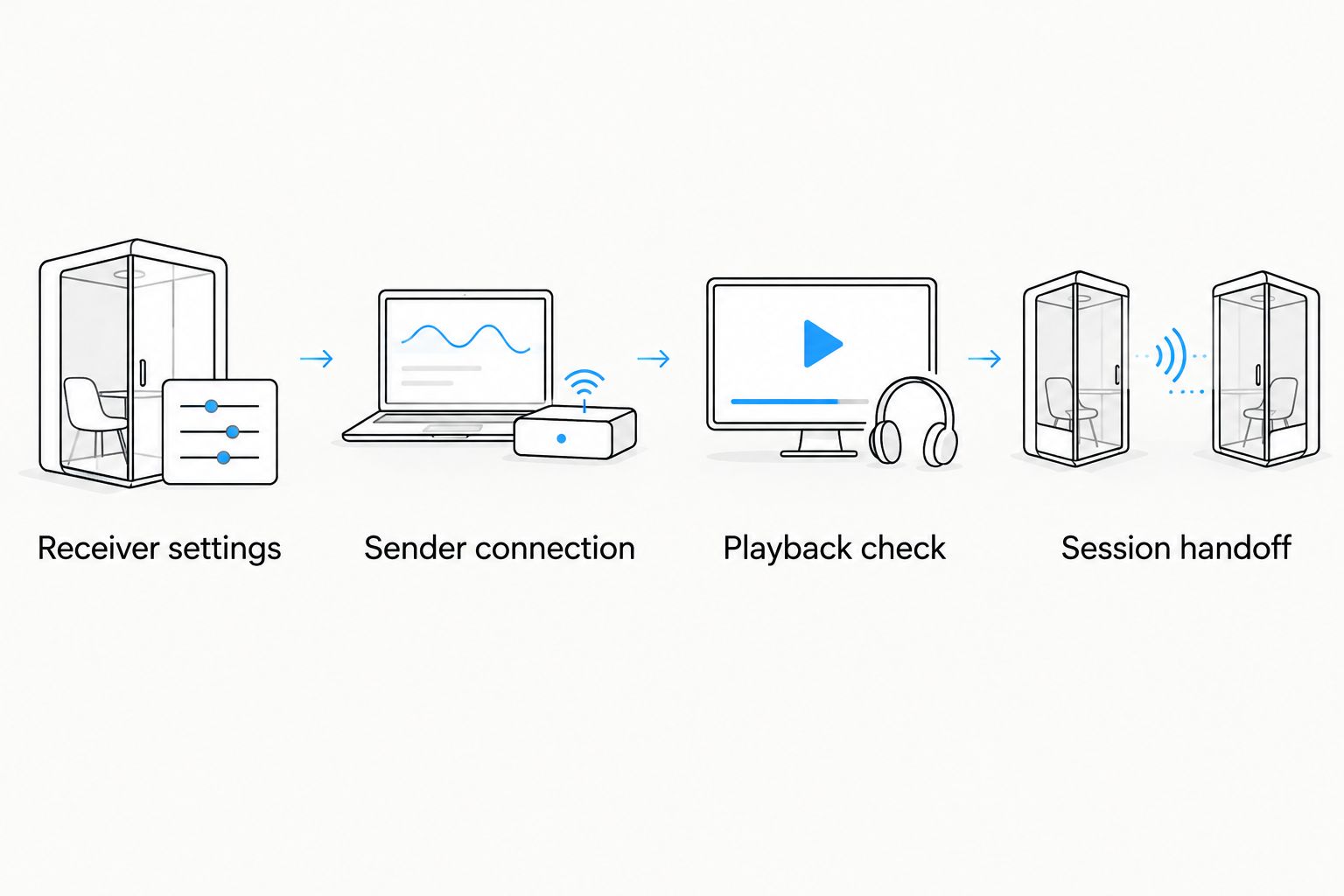
The basic 2026 setup follows a simple order: Receiver settings, Sender connection, Playback check, then Session handoff. Do not skip the playback check just because the connection animation finishes.
Playback check
Start the actual routine while you are still standing beside the device. A successful connection should show moving video and deliver understandable instructions, not just display a thumbnail or loading screen.
- Start your selected routine on the iPhone or iPad.
- Watch the television for 30 seconds as a setup check. This is a practical test window, not a performance guarantee: confirm that the picture continues moving and sound remains audible.
- Pause and resume once from the handheld device. Confirm that the television follows both commands.
- Adjust the television volume. Check the phone's audio destination if sound is coming from headphones or another speaker instead.
- Rotate the handheld device if the video supports landscape viewing. If it stays in portrait orientation, check the device's Portrait Orientation Lock or Rotation Lock control.
Expected result: The actual routine plays on the television, you can hear the instructions, and pause and resume work from the handheld device.
If the video area stays black while menus remain visible, stop troubleshooting Wi-Fi as though discovery failed. The display connection is already working; the problem is specific to playback or its restrictions. Return to a supported viewing method rather than trying to bypass video protection.
Session handoff
Once playback works, arrange the room around the routine. The goal is less device handling, not a television setup that demands attention throughout your session.
- Put the handheld device on a stable surface within reach. Keep it off the exercise area so you do not step on it or knock it over while changing positions.
- Leave enough clear floor space for the movements in the selected routine. Move furniture or choose another space if you cannot change position without reaching an obstacle.
- Confirm that you can hear instructions from your starting position. Do not force your neck into an awkward angle just to watch the television continuously.
- Follow the video within a comfortable range. Stop a movement that causes pain rather than pushing further to match the demonstration.
- When finished, open Control Center, tap Screen Mirroring, then tap Stop Mirroring.
Expected result: You complete the session with the handheld device acting as the controller, then disconnect the shared display deliberately.
For a repeatable 2026 habit, keep the same device placement and television input between sessions. That removes decisions from setup without assuming the connection will always remain active.
Alternative: video AirPlay instead of full-screen mirroring
Some video players provide an AirPlay control that sends the video rather than the whole device display. Use this route only when the player actually shows the control and the content supports it; do not assume every video app includes it.
Start the video, open its playback controls, and look for AirPlay. If present, select it and choose Apple TV, then repeat the video, audio, and pause checks above. If the control is absent, return to the screen-sharing workflow rather than searching for an undocumented app setting.
| Viewing route | Best for | Advantage | Limitation |
|---|---|---|---|
| Screen Mirroring | Sharing the handheld display | Uses a system control rather than an app-specific casting button | Shares other visible screen content; video restrictions can still apply |
| Video AirPlay, when supported | Sending the video itself | Avoids mirroring the entire display | Requires support from the player and the content |
Choose the route that passes the playback check, not the route with the most familiar name. Neither method establishes that a native Apple TV app exists, and neither guarantees permission to send every video to another screen.
Troubleshooting
Apple TV does not appear in Screen Mirroring
Check that Apple TV is awake, AirPlay is on, and both devices use the same network. Then inspect Allow Access on the receiver.
If you are on a guest or managed network, device isolation can block discovery even when both devices have internet access. Ask the administrator for the supported connection method rather than repeatedly reopening the app.
The television shows menus but the video is black
Test the routine directly on the handheld device. If it plays there but not through the television connection, treat that as a playback-specific issue rather than proof of a broken receiver.
Close and reopen playback, then try the player's AirPlay control only if one is present. If the video remains blocked, use the handheld display and ask the service's support team about supported television playback.
Video appears, but instructions are silent
Raise the television volume and check whether the television or sound system is muted. Inspect the handheld device's audio output for a connection to headphones or a separate speaker.
Disconnect an unintended audio destination, then pause and resume the routine. Verify sound before returning to the floor; a moving picture alone does not complete the setup.
Playback freezes or the connection drops
First check whether the routine also stalls on the handheld device. Stalling there points to a broader playback or internet problem, not just the television connection.
If handheld playback continues normally, stop mirroring and reconnect. Reduce competing network activity and test nearer the wireless access point before restarting a full session.
The picture stays upright or does not fill the television
Check orientation lock, then rotate the handheld device while the video is playing. The player must support rotation for the picture to change.
Black borders can reflect the video's proportions or the mirrored display's shape. Avoid stretching the television picture simply to remove them; distorted demonstrations are harder to follow.
Customize your workflow
Make the setup fit the training session, not the other way around. For a 2026 home routine, choose the video before connecting, clear the floor, and run the playback check before you start exercising.
For new users, the best mobility apps for beginners guide offers a separate starting point for choosing a routine format. Television setup solves where you watch; routine selection determines what you follow.
For teams, assign one person to control playback and keep the device within that person's reach. Confirm that everyone can hear instructions without needing to crowd the screen. Screen sharing does not establish group-use permission, so check the subscription terms before organizing a shared session.
FAQ
How do I watch Pliability on Apple TV?
Connect your iPhone or iPad through Control Center's Screen Mirroring control, select Apple TV, and test the actual routine. Continue only if both video and audio play correctly; a mirrored menu alone does not confirm playback support.
Is Screen Mirroring the same as a native Apple TV app?
No. Screen Mirroring shares an iPhone or iPad display with Apple TV, while a native tvOS app runs on the receiver itself. This guide describes the screen-sharing workflow.
How do I check for a native Pliability Apple TV app in 2026?
Search the App Store directly on Apple TV and inspect any matching listing's developer and compatibility information. An iPhone or iPad listing alone does not establish tvOS compatibility.
Why can I see the app menu but not the workout video?
A working mirrored menu does not guarantee that the video permits external playback. Test the routine on the handheld device, then use a supported viewing method if the television playback area remains black.
Do my iPhone and Apple TV need the same Wi-Fi network?
Use the same Wi-Fi network for the workflow in this guide. Guest-network isolation and managed-network restrictions can still prevent discovery, so matching network names do not resolve every connection problem.
Can I use the Apple TV remote to control a mirrored routine?
Use your iPhone or iPad to control playback in the Screen Mirroring workflow. Keep it within reach for pausing, changing the routine, and stopping the connection.
How do I stop showing my phone on Apple TV?
Open Control Center on your iPhone or iPad, tap Screen Mirroring, then tap Stop Mirroring. Confirm that your device display is no longer visible on the television before opening private content.
One last thing
The most useful television check happens from the floor. Before starting your next Pliability mobility routine, sit or lie in the opening position and confirm that you can hear the instructions without craning your neck toward the screen.
A bigger display should reduce device handling. If watching it makes your position less comfortable, prioritize the spoken instructions and pause whenever you need another look.