Instead of manually recording every mobility session, check whether your installed app can write workouts to Apple Health and enable that permission if offered. For a Pliability Apple Health connection in 2026, start with Health’s app permissions—not an assumed integration switch—and verify the result with a completed session.
- Pliability Apple Health setup starts with checking Health permissions; do not assume automatic workout syncing is supported.
- Pliability is best for athletes seeking guided daily mobility, stretching, and recovery routines.
- Enable only the data permissions offered, then check a completed session in Apple Health.
- If workout writing is unavailable, record the session manually without creating duplicate entries.
Why this matters
A completed mobility routine and a saved Health workout are separate records. Finishing a video does not establish that another app received the session. Verify the workout entry before relying on automatic tracking.
Pliability provides daily mobility, stretching, and recovery video routines. Apple Health stores supported health and activity data. Keep those roles separate: the routine guides your movement; the Health record documents whatever data was actually saved.
This 2026 guide covers permission checks, a controlled sync test, and a manual logging alternative. It does not assume a particular in-app connection button, supported data field, or Apple Watch feature.
Before you start
- Have the right access. Use an iPhone with Apple Health, access to your mobility app, and permission to manage Health settings. Update the apps and iPhone software before troubleshooting an old installation.
- Check compatibility before completing a test routine. Open Health’s app-permission list first. If the app is absent or offers no workout-writing permission, the automatic workflow below has no confirmed path on your device.
- Watch for duplicate recording. An Apple Watch workout, an app-written workout, and a manually added workout can describe the same session. Choose one recording method for the test rather than starting all of them together.
Health permissions are specific to the data involved. Permission to read a data category is not permission to write it. You need to inspect the controls actually available, not simply confirm that the app appears somewhere in Health.
Apple Health permissions
Check the available connection
- Open Health on your iPhone.
- Tap your profile picture or initials at the top of the screen.
- Under Privacy, tap Apps.
- Look for the mobility app in the list and open its entry if present.
- Inspect the available read and write permissions. Look specifically for permission to write Workouts if your goal is to save completed routines as workouts.
Expected result: You can identify whether your installation offers workout-writing access. An app listing alone is not proof that completed routines will appear as workouts.
If the app is not listed, return to it and inspect its settings or help information for an explicit Apple Health connection option. Use only an option that actually appears. There is no reason to search for an invented menu path or repeatedly reinstall the app to uncover an undocumented feature.
If no connection option appears, stop the automatic setup here. Use the manual workflow below or ask the app’s support team whether your current version supports writing completed sessions to Health.
Set the relevant permissions
- In the app’s Health permission screen, locate the section for data the app can write.
- Enable Workouts if that control is offered and you want completed sessions recorded there.
- Review other permissions individually. Enable only the categories you understand and want to share.
- Return to the mobility app after changing access.
- If the app presents a Health authorization request, review its requested categories before accepting.
Expected result: The relevant write permission is enabled, or you have established that the permission is not offered. Neither outcome requires granting unrelated access.
Read access and write access solve different problems. Reading lets an app use existing Health data. Writing lets it contribute supported data. Enabling a read permission does not turn on workout export.
For a 2026 setup, follow the controls visible on your device rather than instructions written for an older interface. If the labels differ, use the Health profile’s app-access area and inspect the same permission categories.
Completed-session verification
Run a controlled test
- Choose 1 session you intend to complete normally. Note its date and approximate start and finish times.
- Avoid recording that same session through a second method during the test.
- Complete the routine and follow any completion action the app actually presents.
- Open Health, tap Browse, then open Activity and Workouts.
- Open Show All Data and inspect the entries around the session time.
- Open the relevant entry and check its source, date, and duration.
Expected result: A matching entry identifies the source that wrote it. If no matching entry exists, automatic recording has not been demonstrated.
Do not use a daily activity total as your only evidence. A total does not identify which app contributed a particular workout. The individual record gives you a more useful check.
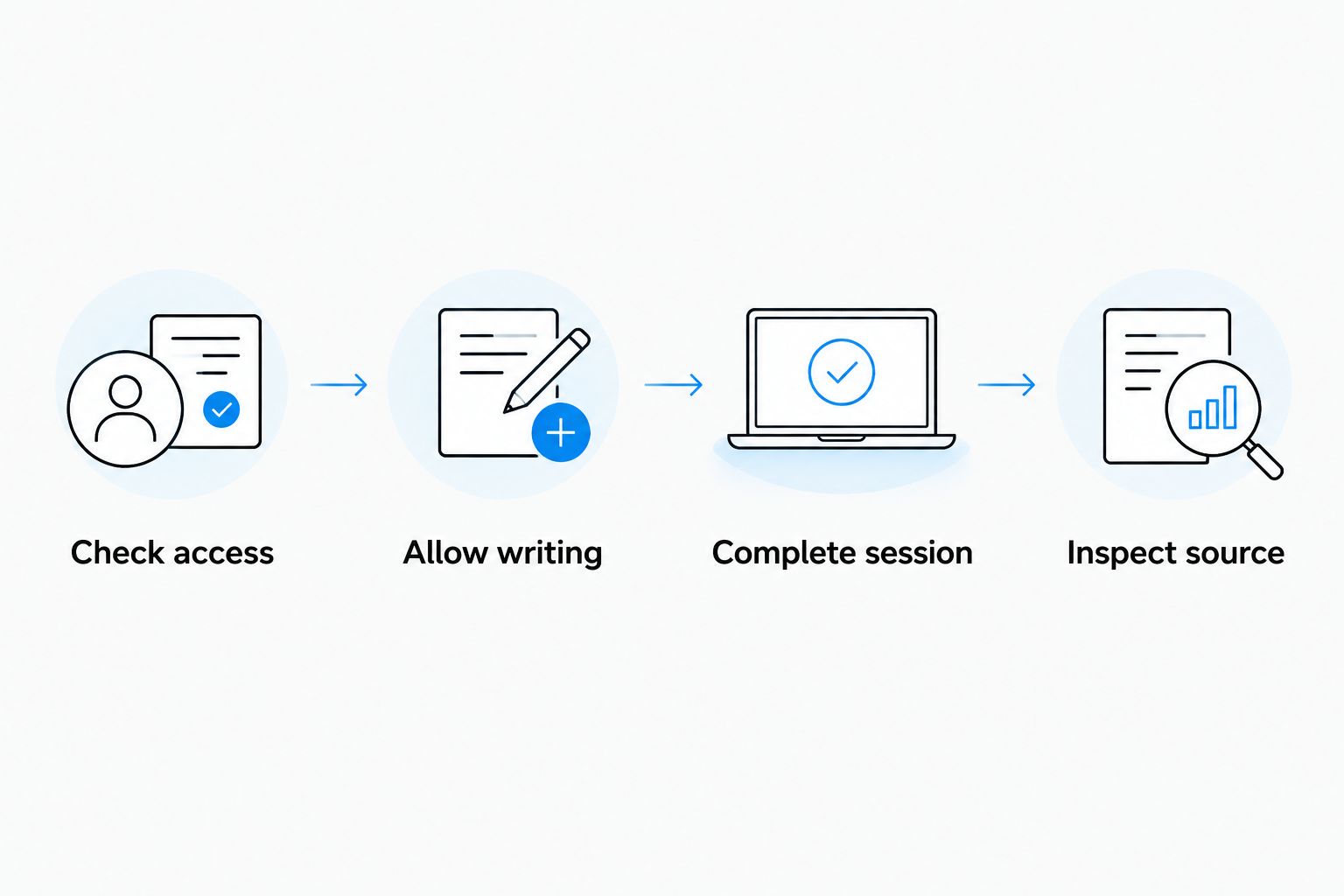
The verification sequence is simple: Check access, Allow writing, Complete session, Inspect source. If one stage fails, return to that stage instead of changing several settings at once.
Inspect what actually transferred
A workout entry is not a promise that every measurement transferred. Check the fields present in the saved record rather than expecting calories, heart rate, or another metric to appear automatically.
Use this short acceptance check:
- Session identity: The date and time match the routine you completed.
- Recording source: The source is the app or device you intended to use.
- Duration: The saved duration describes the session you performed.
- Record count: There is one intended record, not overlapping copies from different sources.
If you find 2 entries for the same session, inspect their sources before deleting anything. Two records can represent duplicate logging, but two entries at nearby times can also describe different activities. Match the actual session first.
For your 2026 training log, consistency matters more than filling every field. A truthful record with fewer fields is better than an entry padded with guessed measurements.
Alternative workflow: log a completed routine manually
Manual logging is the practical alternative when workout-writing access is unavailable. It also gives you a way to document a session that did not transfer. It does not create an ongoing connection between the apps.
Add the workout in Health
- Open Health and tap Browse.
- Open Activity, then Workouts.
- Tap Add Data.
- Select an available activity type that accurately describes the session.
- Enter the session’s actual start and end times. Review any other fields without inventing measurements.
- Tap Add, then inspect the saved entry.
Expected result: Health contains a manually entered workout for the completed routine. The entry records your input; it does not prove an automatic integration exists.
If the available activity types do not precisely describe the routine, choose the closest truthful category. Do not select a more demanding activity just to change how the workout looks in your history.
Choose one recording method
The two workflows serve different situations. Neither makes the mobility work more effective; they change how you document it.
| Recording method | Best for | Advantage | Limitation |
|---|---|---|---|
| Automatic workout writing, when offered and verified | Athletes who want less repeated data entry | Records supported session data without manually recreating the workout | Depends on supported permissions and a successful transfer |
| Manual Health entry | Athletes whose installation does not offer workout writing | Lets you document a completed routine directly | Requires accurate entry and does not establish a continuing sync |
Use verified automatic recording when available; use manual entry when it is not. Do not use both for the same session unless you are deliberately correcting the record and removing the duplicate.
Troubleshooting
The app does not appear in Health
Open the mobility app and check its settings or help information for an explicit Health connection option. If it offers an authorization request, complete that request and then inspect Health again.
If no option appears, ask support whether the installed version supports Apple Health workout writing. An absent listing does not justify assuming that a hidden connection exists.
The app appears, but no workout arrives
Check that Workouts is enabled under writing permissions, not only reading permissions. Then complete a new test session and inspect the individual records in Health.
Do not assume that enabling permission imports earlier sessions. Historical import and future workout writing are separate behaviors; verify each only if the app explicitly offers it.
The workout appears twice
Open both records and compare their sources and times. Check whether you recorded through an Apple Watch, entered the session manually, or allowed another app to write it.
Choose one method for future sessions. Correct only entries you have identified as duplicates, rather than deleting every workout recorded on that date.
The duration or activity type looks wrong
Compare the saved entry with the session you actually completed. Check whether you opened a nearby workout from another source or manually entered the wrong times.
If an automatically written entry is inaccurate, report the session date, displayed duration, and recording source to support. Changing unrelated Health permissions does not correct an incorrectly classified workout.
A saved workout has no heart-rate data
A workout record and a heart-rate measurement are different data categories. Inspect what your recording device actually measured and what permissions were offered.
Do not assume that completing a phone-based video produces heart-rate readings. Keep the record accurate rather than adding estimated values to make it look complete.
Customize your workflow
Build the recording habit around training you already do. After a routine, confirm completion in the mobility app; then check Health only as needed to establish that the chosen recording method works.
For the first 7 days of your own setup, use a brief personal check: confirm the session date, duration, and source after each routine. This is a suggested verification period, not a claim about how long syncing takes. Once the recording path is dependable, stop repeatedly changing permissions.
Keep your 2026 workflow narrow. Record the sessions you actually complete, retain only the permissions you need, and keep mobility work distinct from the task of maintaining a training log.
If you are building recovery around a race schedule, the mobility training guide for HYROX competitors addresses the training context. Health permissions document the work; they do not choose the routine for you.
FAQ
How do I connect Pliability to Apple Health?
Check Health’s app permissions first and enable workout-writing access if your installation offers it. Complete a session, then inspect its individual workout record and source to verify that recording works.
Why can’t I find the app in Apple Health?
Check the app for an explicit Health connection option or authorization request. If neither appears, ask support whether your installed version supports workout writing rather than assuming an integration is available.
Does enabling Health permissions import my old mobility sessions?
Enabling a permission does not establish that historical sessions will import. Verify historical import separately only if the app explicitly offers that function.
Can I add a mobility session to Apple Health manually?
Yes. Open Health, then Browse, Activity, and Workouts, and use Add Data to enter the completed session accurately. Manual entry does not connect the apps for future sessions.
Why is my mobility workout recorded twice?
The same session can be recorded through more than one method, such as a watch and a manual entry. Compare each record’s source and time before identifying and removing a duplicate.
Will a mobility workout automatically include heart-rate data?
A saved workout does not establish that heart rate was measured or transferred. Check the available measurements, recording device, and permissions rather than expecting every field to appear.
Do I need Apple Health to use Pliability for mobility routines?
Apple Health logging is a separate task from following a guided mobility routine. Choose a recording method that supports your training log without making data entry the focus of the session.
One last thing
An empty workout history is not a failed mobility session. It is a recording problem. Fix the connection or add an accurate manual entry, but do not repeat physical work just to produce a digital record.
The useful outcome is controlled movement and a repeatable habit. Your training log should document that habit—not dictate it.