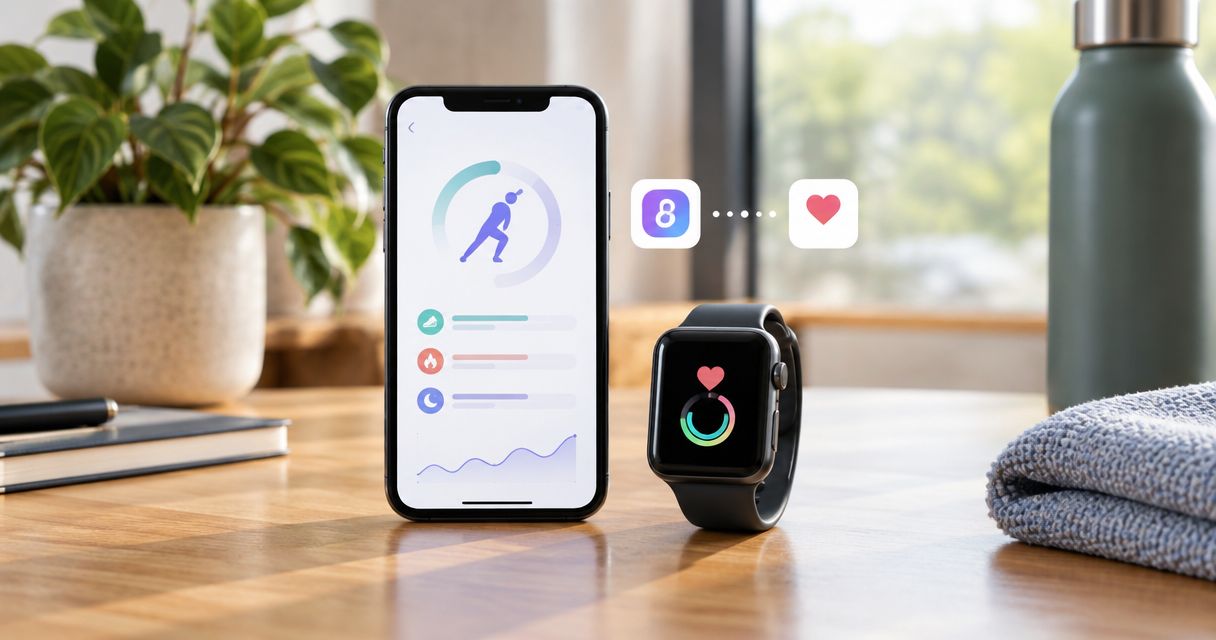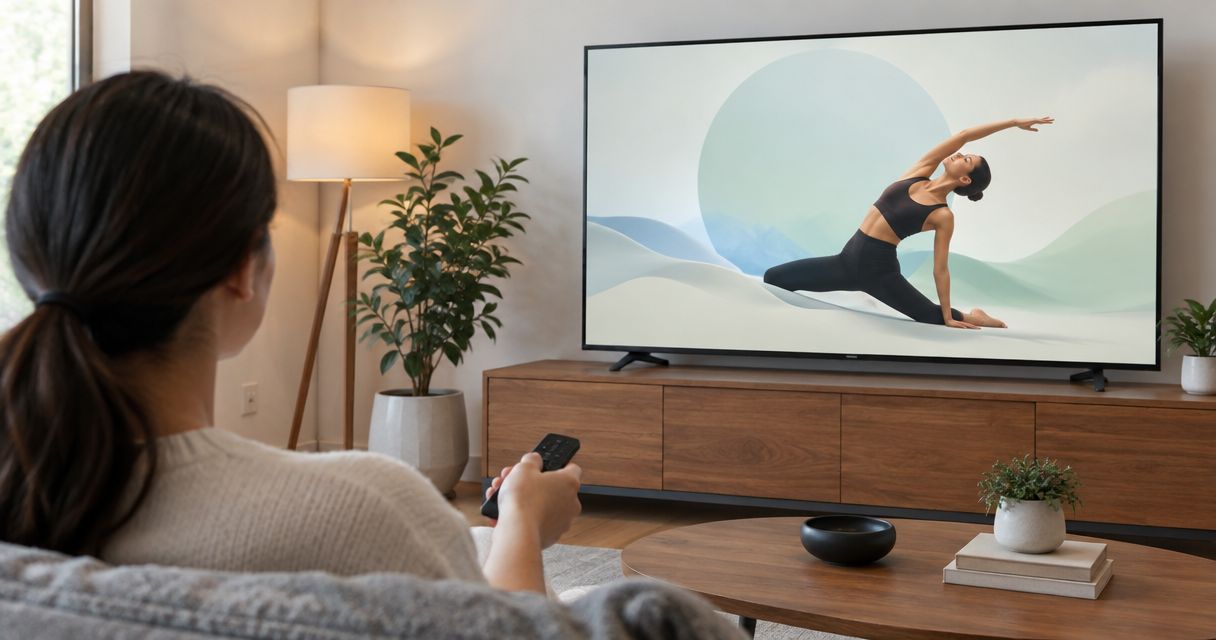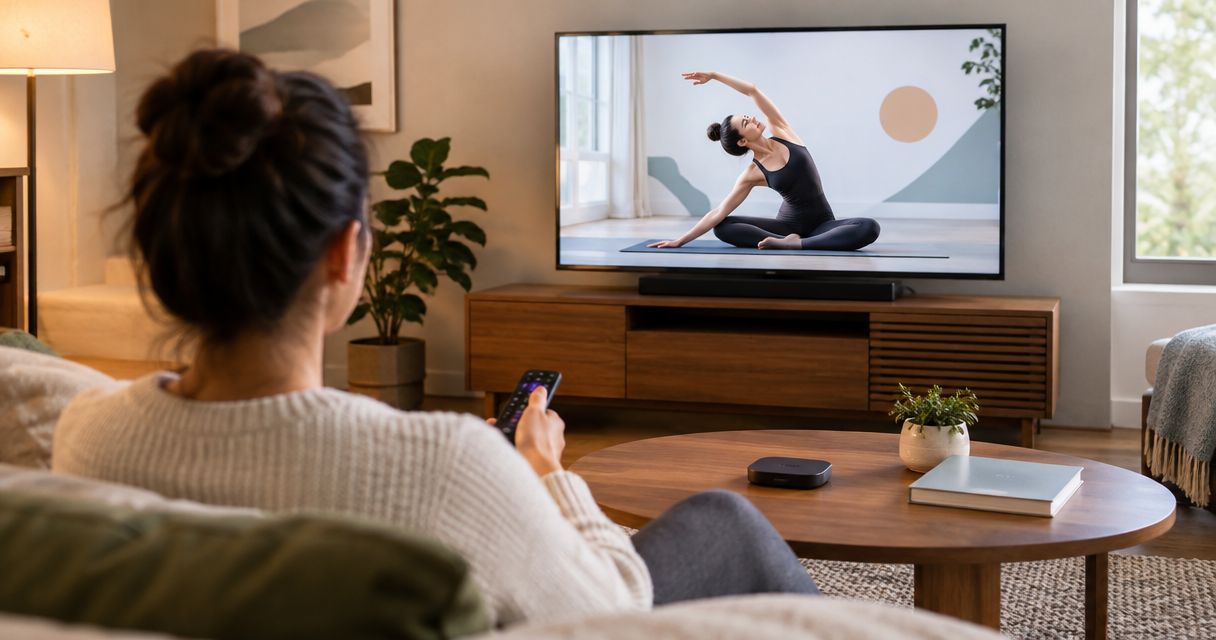
Instead of balancing your phone beside your mat, mirror Pliability to a compatible Roku so you can follow mobility routines on your TV. This guide covers the Roku settings, the iPhone connection, and a Windows alternative—not a native Roku channel installation.
- Searching for the pliability roku app? Use screen mirroring on a compatible Roku to test TV playback.
- Pliability is best for athletes and fitness enthusiasts who want daily guided mobility, stretching, and recovery routines.
- For iPhone screen mirroring, confirm that your Roku has Apple AirPlay settings before starting.
- Windows wireless projection uses a separate connection method; AirPlay settings do not control it.
Why this matters
A bigger screen makes a follow-along routine easier to see from the floor. It also keeps your phone out of your hands while you move. But the TV connection must work before you settle onto the mat.
Screen mirroring sends your device’s display to the TV; it does not install the subscription app on Roku. You still select and control the routine on your phone or computer. That distinction matters when you search for a channel, troubleshoot a black screen, or expect the Roku remote to control playback.
Pliability provides daily mobility, stretching, and recovery video routines. The workflow below handles the display connection; it does not change your account access or the content you can watch.
For your 2026 setup, start with the settings actually present on your Roku. Device compatibility is the gate—not the television’s screen size or brand.
Before you start
- Confirm playback on your source device. Have access to your subscription account and open a routine on the phone or computer you intend to use. Make sure it plays locally before troubleshooting the TV.
- Check the Roku connection method. For an iPhone or iPad, look for Settings, then Apple AirPlay and HomeKit on Roku. Connect both devices to the same local Wi-Fi network. For Windows, confirm that the computer and Roku support compatible wireless screen mirroring.
- Account for the hidden gotcha: a mirrored screen is not proof of video playback. A menu or home screen can appear on the TV while video remains black because of a playback restriction or connection problem. Test the actual routine, including sound, before starting your session. Enable Do Not Disturb to keep personal notifications off the television.
If the AirPlay menu is absent, stop the iPhone instructions here. Check your exact Roku model’s AirPlay support rather than repeatedly searching for a setting the device does not provide.
Choose your connection method
Use the route that matches your source device. These are separate workflows, not interchangeable settings.
| Connection | Best for | What it does well | Limitation |
|---|---|---|---|
| iPhone or iPad screen mirroring through AirPlay | Apple-device users with an AirPlay-compatible Roku | Shows the device display on the TV through Control Center | Requires compatible Roku hardware and a working local-network connection; video playback still needs testing |
| Windows wireless projection | Windows users with compatible wireless-display hardware | Projects the computer display without using the Roku AirPlay menu | Depends on wireless-display support on both devices; not every computer supports it |
Start with the device that already plays your routine correctly. Changing the playback device and the TV connection at the same time makes faults harder to isolate.
For a 2026 compatibility check, use the exact device model and software version when consulting Roku, Apple, or Microsoft support. A product-family name alone does not establish support for either method.
Roku AirPlay setup
Set up the receiver first. Keep the Roku remote nearby because the television can display a pairing code during the connection.
- On the Roku home screen, open Settings.
- Select Apple AirPlay and HomeKit.
- Set AirPlay to On.
- Check the Roku’s network under Settings, Network, then About. Connect your iPhone or iPad to the same local Wi-Fi network.
- Leave the television on the Roku input while you connect your Apple device.
Expected result: AirPlay is enabled, both devices are on the same local network, and the Roku is ready to receive a connection. You have not yet confirmed that a routine will play.
If you are using hotel, workplace, or guest Wi-Fi, devices can be prevented from communicating even when the network names match. Use a home network you control for the initial test. Do not change managed-network security settings without permission.
iPhone or iPad screen connection
Connect the whole screen through Control Center. This avoids depending on whether a particular video player exposes its own AirPlay button.
- Open Control Center on your iPhone or iPad. On devices without a Home button, swipe down from the upper-right corner; on an iPhone with a Home button, swipe up from the bottom edge.
- Tap Screen Mirroring.
- Select your Roku from the device list.
- If an AirPlay passcode appears on the television, enter it on your Apple device.
- Return to your device’s home screen and confirm that the television shows the same display.
Expected result: Your device’s screen appears on the television. If the Roku does not appear in the list, resolve discovery before opening the routine; restarting the video will not fix a missing receiver.
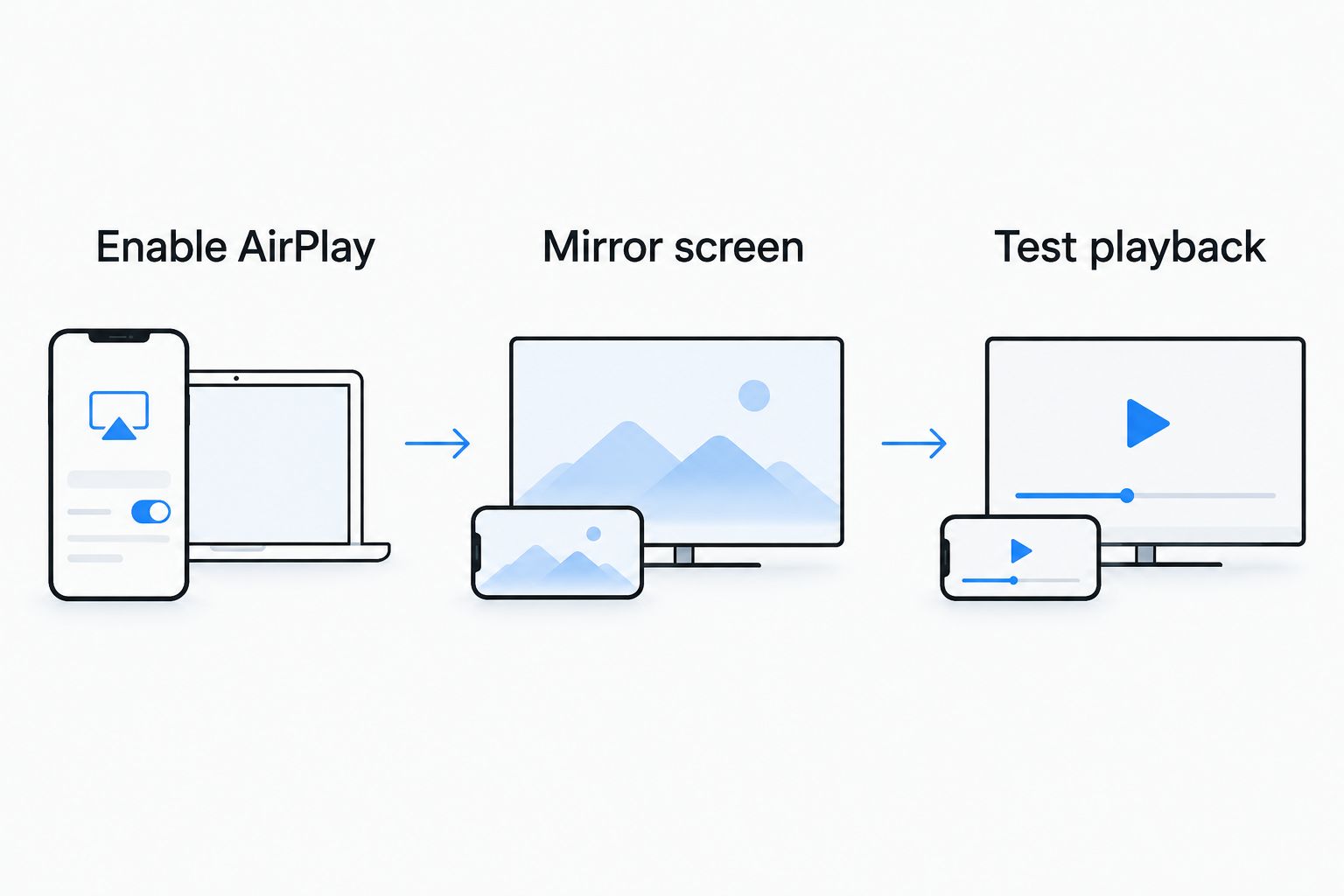
The connection follows a simple sequence: Enable AirPlay, Mirror screen, then Test playback. Keep those checks separate so you know which part needs attention.
Routine playback and room setup
Now test the content you intend to follow. A successful connection is useful only if the moving picture, sound, and controls work together.
- Open Pliability on your source device and select a routine you can already play there.
- Start the video. If the player supports full-screen viewing, use it; rotate your device only if the display follows that orientation correctly.
- Watch 30 seconds on the television. Confirm that the picture moves continuously and the sound comes from the output you intend to use.
- Pause and resume once from the source device. Do not assume that the Roku remote controls the app running on your phone.
- Place the phone on a stable surface within reach. Position your mat so you can see the television without holding your neck turned throughout the routine.
- Follow the opening 1 minute as a practical visibility check. Adjust your position before committing to the full session.
Expected result: The actual routine plays on the TV, you can hear the instructions, and you can pause without getting up to search for your phone.
Screen mirroring has a clear advantage: you can follow the same session on a larger display. Its trade-off is that the source device remains part of the setup. Notifications, connection interruptions, and device handling can interrupt the session.
Finish the playback check before you start stretching. A working home screen is not the finish line.
Windows wireless projection alternative
Use this variant when your Windows computer already plays the routine and both devices support wireless screen mirroring. Windows projection does not use the Roku’s Apple AirPlay and HomeKit settings.
- On Roku, open Settings, then System, then Screen mirroring.
- Open Screen mirroring mode and choose Prompt so you can approve incoming connection requests.
- On your Windows computer, press Windows key + K to open the wireless-display connection panel.
- Select the Roku if it appears. Approve the connection request on the television.
- Press Windows key + P and select Duplicate if you want the TV to show the same desktop as the computer.
- Open the routine in the playback environment you normally use. Test the video and audio before moving onto your mat.
Expected result: The television shows the computer’s display and plays the selected routine. If Windows reports that wireless display is unsupported, stop this route rather than changing unrelated AirPlay settings.
For this 2026 Windows workflow, keep the first test simple: one computer, one Roku, and one routine. Add other displays or audio devices only after basic playback works.
When you finish, press Windows key + K and disconnect the wireless display. Disconnecting ends projection; it does not necessarily stop playback on the computer, so pause the routine separately.
Troubleshooting
The Roku does not appear on the iPhone
First confirm that AirPlay is On and both devices are on the same local network. Guest-network isolation can block discovery. Reconnect both devices to your regular home network, then reopen Screen Mirroring.
If discovery still fails, restart the source device and Roku. Check for system updates on both before testing again. Do not assume that a Roku missing its AirPlay menu can gain the feature through a restart.
The television shows menus but the video is black
Stop mirroring and play the same routine directly on the source device. If local playback fails, resolve that account, connection, or playback issue first.
If local playback works but mirrored video stays black, reconnect and test again. Persistent video-only failure needs a compatibility or playback-support check; a visible home screen does not establish that the video can be mirrored. Use working local playback rather than repeatedly interrupting your session.
The picture works but sound comes from the wrong device
Check the television’s volume and mute state, then check the source device’s volume and current audio output. Disconnect Bluetooth headphones or speakers if they are receiving audio you want on the TV.
Run another short playback test. Change one audio setting at a time so you can identify the cause instead of creating a second problem.
Playback stutters or disconnects
Test the routine locally to separate internet playback trouble from the display connection. If local playback is smooth, improve the wireless connection: move closer to the router where practical and pause competing large downloads during the test.
Repeat a 2-minute playback check before restarting the full routine. This is a setup check, not a guarantee that a longer session will remain uninterrupted.
Windows connects but shows the wrong desktop
Press Windows key + P and choose Duplicate for the simplest follow-along setup. An extended desktop can leave the video window on the computer while the television shows an empty workspace.
Move the video into view and test full-screen playback again. Keep the computer controls within reach; the television remains a display, not a replacement for the playback device.
Customize your workflow
Make the setup repeatable. Keep the same source device, television input, and connection method for your next session. Before starting, check three things: picture, sound, and reachable pause controls.
For your 2026 routine, choose the training focus separately from the display method. A larger screen changes how you follow the session, not which mobility work fits your training. Start with a routine you already know before introducing unfamiliar movements and a new screen setup together.
Once the connection is reliable, use the sport-specific guides below to plan your next session. Keep the technical setup boring so your attention stays on movement.
FAQ
Is there a Pliability Roku app I need to install?
You do not need a native Roku app for the screen-mirroring workflow in this guide. Open Pliability on your source device and mirror its display to a compatible Roku; this guide does not establish native Roku channel availability.
Can I watch routines on Roku from my iPhone?
Use iPhone Screen Mirroring when your Roku supports AirPlay. Confirm that the actual routine plays with picture and sound, because a successful screen connection alone does not confirm video playback.
Where are the AirPlay settings on Roku?
On compatible Roku devices, open Settings, then Apple AirPlay and HomeKit. Set AirPlay to On before selecting the Roku from your Apple device’s Screen Mirroring list.
Why does my Roku show the phone screen but not the video?
A visible phone screen confirms screen mirroring, not video compatibility. Test local playback first, then reconnect; persistent black video needs a playback-support or compatibility check.
Can I use a Windows laptop instead of an iPhone?
Yes, if the Windows computer and Roku support compatible wireless screen mirroring. Use Windows key + K to connect, approve the request on Roku, and test the routine before exercising.
Can I control the routine with the Roku remote?
Use the source device for reliable playback control during screen mirroring. Do not assume the Roku remote controls the app or browser running on another device.
Do my iPhone and Roku need the same Wi-Fi network?
For the AirPlay workflow described here, connect your iPhone and Roku to the same local Wi-Fi network. A guest network can still block communication between devices, even when both appear connected.
One last thing
Disconnect the screen when the routine ends. Screen mirroring can keep showing whatever you open next, including messages and other personal content. On iPhone or iPad, open Screen Mirroring in Control Center and tap Stop Mirroring.
Make that your final step in every 2026 TV session: pause playback, disconnect, then put the device away.