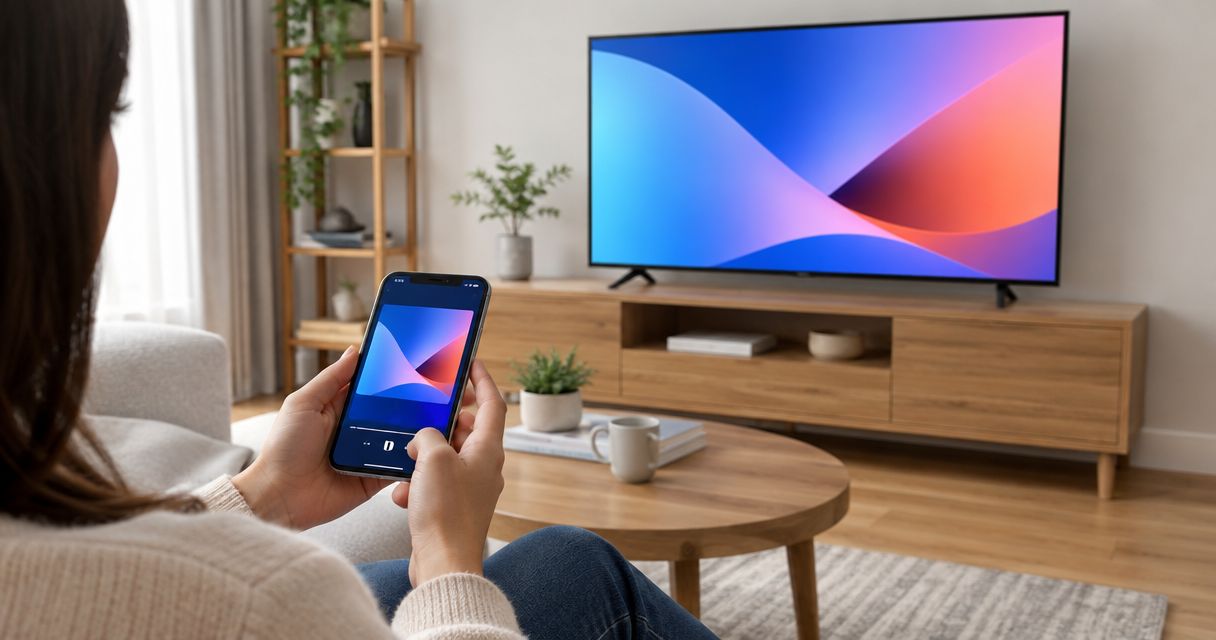
Instead of following a mobility routine on a phone propped against the wall, cast Pliability to TV using your phone’s screen-mirroring controls and a compatible receiver. This 2026 guide covers iPhone and Android setup, connection checks, and fixes when the picture or sound does not reach the television.
- To cast Pliability to TV, match your phone’s screen-mirroring method to the receiver your television supports.
- For iPhone, use Screen Mirroring with an AirPlay-compatible receiver.
- For Android, check Google Cast compatibility; a smart TV label alone does not establish support.
- Test video and sound before starting your mobility routine; successful screen mirroring does not guarantee video playback.
Why this matters
A larger screen makes the instructor easier to see without holding your phone during a stretch. The connection still needs to work from the position where you exercise, not just while you stand beside the television.
Pliability is best for athletes who want guided daily mobility, stretching, and recovery routines. The Pliability mobility app provides the routine; your phone and television determine how screen mirroring works.
Keep those jobs separate. You do not need to find an assumed casting button inside the app to test your phone’s built-in mirroring controls. However, seeing your phone’s home screen on the television does not prove that the video itself will play through that connection.
Before you start
- Prepare your account and equipment. Have your phone, access to the routine you want to play, the television remote, and a receiver compatible with your phone’s mirroring method.
- Check the network. Connect the phone and receiver to the same home Wi-Fi network. Guest-network isolation can prevent discovery even when both devices have internet access.
- Check the receiver protocol first. AirPlay, Google Cast, and Miracast are different technologies. A television that supports one does not automatically support the others. This is the compatibility check that prevents most wasted setup work.
For your 2026 setup, check the television’s actual settings or manufacturer documentation rather than relying on the words smart TV. If you use a separate streaming receiver, check that receiver too. Its capabilities determine the connection, not the television panel behind it.
Choose the matching connection
| Connection | Best for | What you need | Advantage | Limitation |
|---|---|---|---|---|
| Apple AirPlay | iPhone users with an AirPlay-compatible receiver | An iPhone and an enabled AirPlay receiver | Screen mirroring starts from Control Center | A Google Cast-only receiver is not an AirPlay receiver |
| Google Cast | Android users with a supported screen-casting phone and receiver | An Android phone with compatible screen casting and a Google Cast receiver | Whole-screen casting can work without an app-specific casting button | Android menus vary, and Miracast-only receivers do not satisfy Google Cast requirements |
Neither connection is the universal winner. Use the protocol both devices support. Buying or configuring the wrong receiver does not solve a missing connection method.
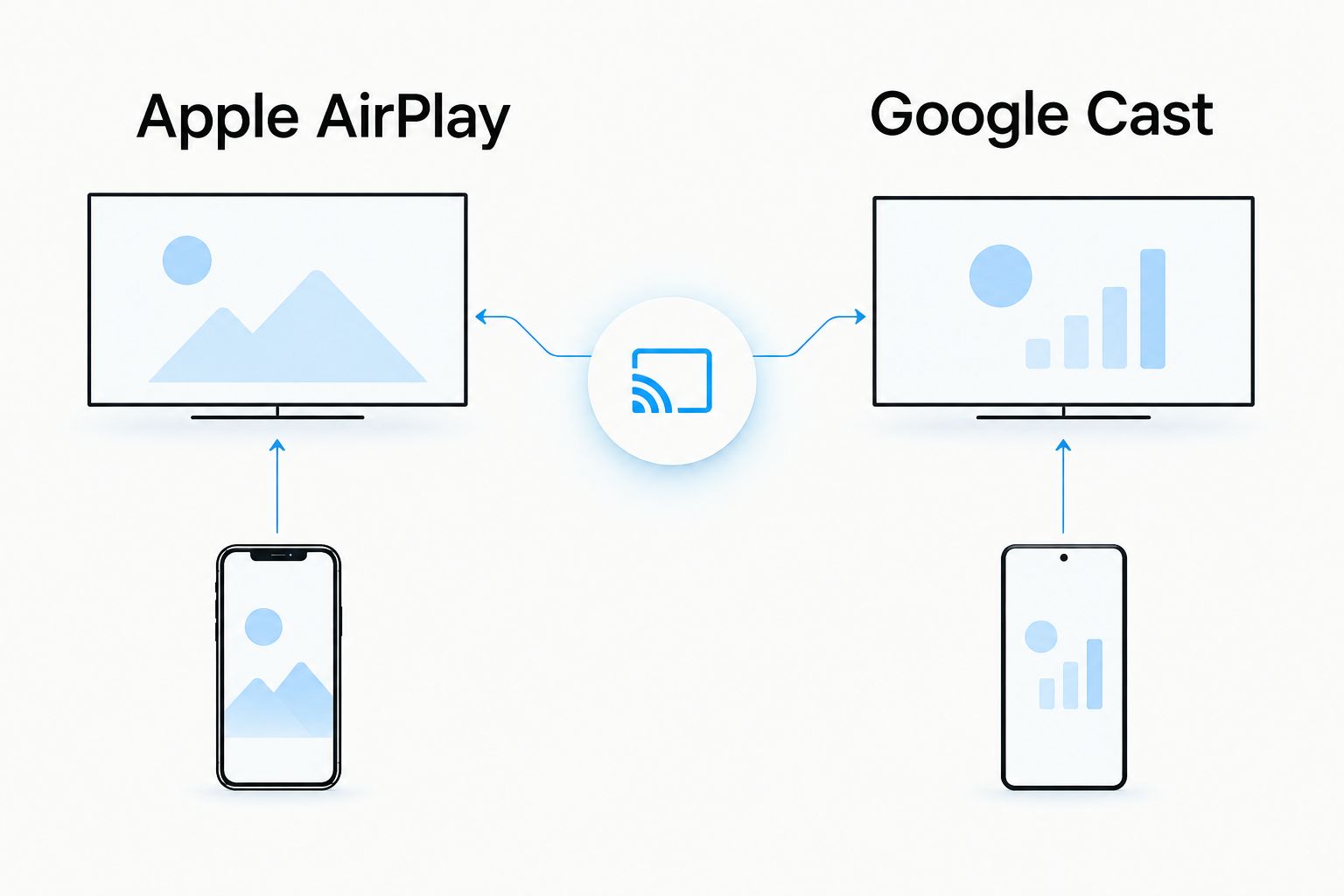
Receiver setup
Start at the television. A phone cannot discover a receiver that is disabled, disconnected, or connected to an isolated network.
- Turn on the television and any separate streaming receiver. Select the HDMI input connected to that receiver if you use an external device.
- Open the receiver’s network settings and confirm that it uses the same home network as your phone. Compare the network names rather than assuming both devices joined the intended connection.
- For an AirPlay connection, enable AirPlay in the receiver’s settings. The menu location depends on the television or receiver; use its documented instructions rather than looking for a universal menu path.
- For a Google Cast connection, confirm that the receiver supports Google Cast and has completed its network setup. A television’s generic wireless-display setting is not sufficient proof.
- Keep the remote nearby. You might need it to approve a connection request or read an on-screen pairing code.
Expected result: The television is awake, the correct input is visible, and the receiver is ready on the same network as the phone. You have also identified which connection method to use.
Do not troubleshoot the workout app yet. Establishing this receiver baseline removes a separate source of failure before you test video.
iPhone screen mirroring
Use this route when your television or connected receiver supports AirPlay. These are iPhone controls, not an assumed feature inside the workout app.
- Open Control Center. On an iPhone with Face ID, swipe down from the upper-right corner. On an iPhone with a Home button, swipe up from the bottom edge.
- Tap Screen Mirroring, represented by overlapping rectangles.
- Select the name of your television or AirPlay receiver. If several receivers appear, choose the one connected to the screen in front of you.
- If an AirPlay passcode appears on the television, enter it on your iPhone. Follow any approval request displayed by the receiver.
- Confirm that the television shows your phone screen. Then open your routine and start playback.
- Check the instructor’s picture and sound. If rotation is supported by the video player, turn the phone sideways and confirm that the television displays the intended orientation.
Expected result: The routine’s moving picture and audio reach the television. Leave the phone somewhere stable and accessible so you can pause without interrupting your position.
When you finish, open Control Center, tap Screen Mirroring, and select Stop Mirroring. Ending playback alone does not necessarily end the mirrored connection.
If your receiver is an Apple TV, the separate guide to watching Pliability on Apple TV covers that device-focused workflow.
Android screen casting
Use this route with a Google Cast-compatible receiver and an Android phone that supports whole-screen Google Cast. Do not assume every Android phone uses the same wireless-display technology.
- Open your phone’s screen-casting controls. On Google Pixel phones, the settings route is Settings, Connected devices, Connection preferences, then Cast.
- On another Android phone, search its settings for casting and check the manufacturer’s instructions for the supported receiver type. A similarly named control can use a different protocol.
- Choose the Google Cast receiver connected to your television. Read any screen-sharing confirmation before accepting it; whole-screen casting shares more than the video player.
- Confirm that the television displays your phone screen. Open your routine and start playback.
- Check picture, sound, and orientation. If you receive a black video area while other phone content remains visible, treat that as a playback issue rather than proof that the receiver disappeared.
- Keep the phone awake during the initial test. Once playback works, check how your specific setup behaves before leaving the phone untouched for the full routine.
Expected result: The television displays the playing routine, not merely a connection message or a frozen phone screen.
Android labels and available controls differ by manufacturer and software version in 2026. Use the Pixel path only for a matching device. If your phone’s casting control cannot discover a Google Cast receiver, verify the phone’s supported protocol before changing unrelated settings.
Run a short playback check
Before moving onto the floor, run a 30-second playback check. This is a suggested setup test, not a statement about connection speed.
- Confirm that the instructor keeps moving rather than freezing after the opening frame.
- Pause and resume once from the phone.
- Check that sound comes from the intended speaker without competing phone audio.
- Move to your exercise position and confirm that you can see the screen comfortably.
For a shared room, allow 1 minute before the session to check the receiver name and clear notifications. Complete **2 checks—picture and sound—**before asking anyone to follow the routine.
Keep the connection for your next routine
If you want to play another routine during the same session, test switching videos without disconnecting screen mirroring. Whole-screen mirroring follows the phone display; it is not necessarily tied to the first video you opened.
- Pause the current routine before browsing elsewhere on the phone.
- Return to the routine selection screen while keeping the mirrored connection active.
- Open the next routine and start playback.
- Confirm picture and sound again before stepping away from the phone.
Expected result: The next routine appears on the television without repeating receiver discovery or pairing.
The trade-off is privacy. Anyone watching the television can see other content you open while the screen remains mirrored. Stop mirroring before opening messages, account details, or unrelated apps.
For your regular 2026 routine, keep the setup repeatable: the same receiver, the same exercise position, and a phone location you can reach. Consistency removes unnecessary setup decisions without requiring an unsupported automation or integration.
Troubleshooting
The television does not appear
Confirm the protocol first: iPhone screen mirroring needs an AirPlay receiver; the Android route described here needs Google Cast compatibility. Then check that the receiver is awake and both devices use the same network.
If either device uses guest Wi-Fi, switch to the main home network where permitted. Device isolation can block discovery. A VPN can also interfere with local access; check its local-network settings before temporarily disconnecting it for a test.
The phone screen appears, but the video is black
A successful mirror does not guarantee that every video player permits mirrored playback. Playback restrictions can prevent a video from appearing even while menus remain visible.
Stop playback, close and reopen the app, then test again with current software. If the problem remains, consult the app’s support team about supported television playback. Do not assume that repeated pairing or a different cable bypasses a playback restriction.
The picture works, but there is no sound
Check the television’s mute setting, selected speaker output, and volume. Then check whether the phone is sending audio to headphones or another connected device.
Pause playback before changing audio destinations. Resume and verify the result from your exercise position, where quiet instructions are easier to miss.
Playback freezes or repeatedly disconnects
First check whether playback also stalls directly on the phone. If it does, troubleshoot the phone’s internet connection before blaming mirroring.
If only the television stalls, improve the local wireless connection and retest without competing network-heavy activity. Restart the phone and receiver if the connection remains unstable. Change one condition at a time so you know which adjustment helped.
The image is sideways or notifications appear
For orientation problems, check the phone’s rotation lock and whether the video player supports landscape playback. Do not stretch the television picture merely to remove borders; that can distort the instructor’s movement.
For privacy, enable Do Not Disturb and review permitted exceptions. Screen mirroring shares the display, so dismiss existing notifications before connecting as well.
Customize your workflow
Build the television setup around the routine, not the other way around. Put the screen where you can glance at it without repeatedly twisting your neck. Keep enough clear floor space to move without reaching for furniture.
Pliability mobility routines give athletes and fitness enthusiasts guided stretching and recovery videos. Television mirroring changes the viewing surface; it does not turn a shared screen into individualized coaching.
For a home setup in 2026, save a simple checklist: receiver awake, matching network, notifications controlled, playback checked. For team sessions, also confirm that everyone can see the instructor and hear the cues before starting.
FAQ
How do I cast Pliability to TV from an iPhone?
Use Control Center, select Screen Mirroring, and choose an AirPlay-compatible television or receiver. Start your routine and verify both video and sound; receiver compatibility alone does not guarantee that a video player permits mirrored playback.
Can I use an Android phone to show a routine on my TV?
Use whole-screen Google Cast when both your Android phone and receiver support it. Android controls vary, so confirm the phone’s casting protocol rather than assuming every wireless-display option works with every television.
Does every smart TV support phone screen mirroring?
No. Smart TV describes connected television features, not one universal mirroring protocol. Check specifically for AirPlay or Google Cast support, depending on your phone and chosen connection method.
Do my phone and television need the same Wi-Fi network?
Use the same home Wi-Fi network for the workflows in this guide. Guest-network isolation can prevent devices from finding each other even when both have internet access.
Why does the TV show my phone but not the workout video?
A video player can restrict mirrored playback even when the rest of the phone screen appears normally. Retest after restarting playback and updating software, then ask the app’s support team about supported television playback if the problem persists.
Can I lock my phone while the routine plays on the television?
Do not assume whole-screen mirroring continues normally when the phone locks. Test your exact phone, receiver, and player before relying on that behavior during a routine.
Are these casting steps the same on every phone in 2026?
No. The iPhone workflow uses Control Center, while Android settings vary by manufacturer and software version. Follow the named Android path only on a matching device, and use manufacturer instructions for other phones.
One last thing
Test the screen from the floor, not the sofa. A television that looks well positioned while you stand can be awkward to follow during a low stretch. Before your next session in 2026, check one comfortable floor position, adjust your viewing angle, and keep the pause control within reach.