Instead of manually piecing together workout history and stiffness notes every day, use Apple Watch mobility tracking to record your sessions, then add a repeatable movement check to a personal log. Apple Watch records activity; the daily mobility score in this 2026 workflow is a manual check-in, not a joint-range measurement or an automatic app integration.
- Apple Watch mobility tracking records activity, not a universal daily joint-mobility score.
- Pliability suits athletes and fitness enthusiasts who want guided mobility, stretching, and recovery routines.
- Keep workout duration separate from your manually recorded movement score.
- Repeat the same comfortable checks under similar conditions; stop if movement causes pain.
Why this matters
Finishing a stretching session and moving comfortably are different outcomes. A workout record tells you that you trained. It does not establish how freely your ankles, hips, or shoulders move.
Pliability is best for athletes and fitness enthusiasts who want guided daily mobility, stretching, and recovery videos. Use Pliability for that guided practice, and keep your movement check separate from the workout record.
For your 2026 tracking setup, distinguish three things: the session you completed, how movement felt, and any walking-related measurements shown in Apple Health. Combining them into one unexplained number makes the record harder to interpret.
This guide builds a personal habit tracker. It does not create a validated assessment, diagnose restricted movement, or measure joint angles.
Before you start
- Accounts and access: Have your paired Apple Watch and iPhone ready, with access to the Workout and Health apps. Have access to your chosen guided routine if you plan to follow one.
- Materials: Choose a notebook or digital note, a stable chair or support, and enough clear space to move comfortably. Keep the same setup for each check.
- The gotcha: Apple Health's Mobility category is not a whole-body flexibility score. Walking measurements, workout records, and a personal movement score are separate records; do not expect one to populate another automatically.
Choose a baseline before starting the routine, not after stretching. Comparing a cold morning check with a post-workout check introduces a change in conditions that your score cannot explain.
Choose your tracking method
For this 2026 workflow, use the Watch as a session log and your note as the movement log. Neither replaces the other.
| Method | Best for | What it records | Advantage | Limitation |
|---|---|---|---|---|
| Apple Watch workout record | Tracking completed practice | Session time and workout data | Keeps practice alongside other workouts | Does not establish joint range or movement quality |
| Manual movement check | Tracking your own perceived restrictions | Consistent ratings and brief notes | Adds context that workout duration cannot provide | Subjective; depends on repeatable conditions |
| Apple Health walking measurements | Reviewing walking-related information | Supported walking metrics when recorded | Separates walking information from exercise history | Not a substitute for checking hips, shoulders, or other joints |
Use the manual movement check for the daily score described here. Its advantage is transparency: you know exactly what contributed to the total. Its weakness is subjectivity, so avoid comparing your score with someone else's.
Your baseline and score log
Start with movements you already perform comfortably. The examples below are observation prompts, not exercises to push through and not a clinical screening battery.
Configure your baseline
- Create a note titled Daily mobility log 2026. Add these fields: Date, Check timing, Ankle check, Hip check, Shoulder check, Total, Session, and Context. These are your own log labels, not Apple app settings.
- Choose one repeatable ankle movement. For example, stand facing a wall with support nearby and gently move one knee forward while keeping that heel down. Keep your foot position consistent; do not chase a distance.
- Choose one comfortable hip movement, such as a supported shallow squat toward the same chair. Use the same support and intended depth each time. Do not force a deeper position to improve the score.
- Choose one comfortable shoulder movement, such as raising your arms overhead while standing. Keep the same stance and avoid deliberately arching your back to reach farther.
- Write a short description of each setup. Record which side you check, or record both sides separately in the notes if they feel different.
Expected result: Your log describes movements you can repeat without guessing how yesterday's check was performed.
Configure your scoring rule
- Assign 0 points when you do not complete your usual comfortable check because movement feels too restricted. Record the reason rather than forcing a result.
- Assign 1 point when you complete the check but feel noticeably restricted compared with your usual comfortable movement.
- Assign 2 points when you complete the check comfortably without adding a compensation you normally avoid.
- Add the three ratings for a personal total from 0 to 6 points. Keep the individual ratings visible beside the total.
- Write Not checked instead of a number when you skip a movement. Do not enter zero for missing information.
Expected result: Every total has an explanation. This is an editorial scoring convention for your own log, not a published mobility standard or an Apple-generated metric.
If a check produces pain, stop it. Do not treat pain as a low score to train through; leave that check unscored and seek appropriate professional advice when symptoms persist or concern you.
Your Apple Watch session record
Use the Watch to record practice, not to calculate your manual score. No background connection between the movement log and Apple Health is required for this workflow.
Configure your workout record
- Open Workout on Apple Watch. Choose an activity type that accurately describes the session; use Other when the available choices do not describe what you are doing.
- Start the workout when your movement session begins. Follow your selected routine without changing the session merely to influence activity totals.
- End the workout when the session finishes. In the workout controls, select End and review the summary.
- Open Health on iPhone and use its search function to find Workouts. Check the session date, activity type, and duration after the record has synced.
- Add the session's recorded duration to your personal note. If you did not record the session, write that plainly rather than estimating a Watch measurement.
Expected result: A completed session appears as a workout record, while the movement ratings remain in your separate log.
A workout label describes the recording category, not the quality of your movement. Do not infer improved hip rotation or shoulder control from workout duration, calories, or a completed activity ring.
For app-specific connection instructions, use the separate guide to connecting Pliability to Apple Health. Keep this manual workflow independent of that connection: a successful workout sync does not turn your subjective check into an automatic score.
Your daily review
Keep the 2026 routine simple enough to repeat. A detailed log is useful only when its entries mean the same thing from day to day.
Configure your check-in habit
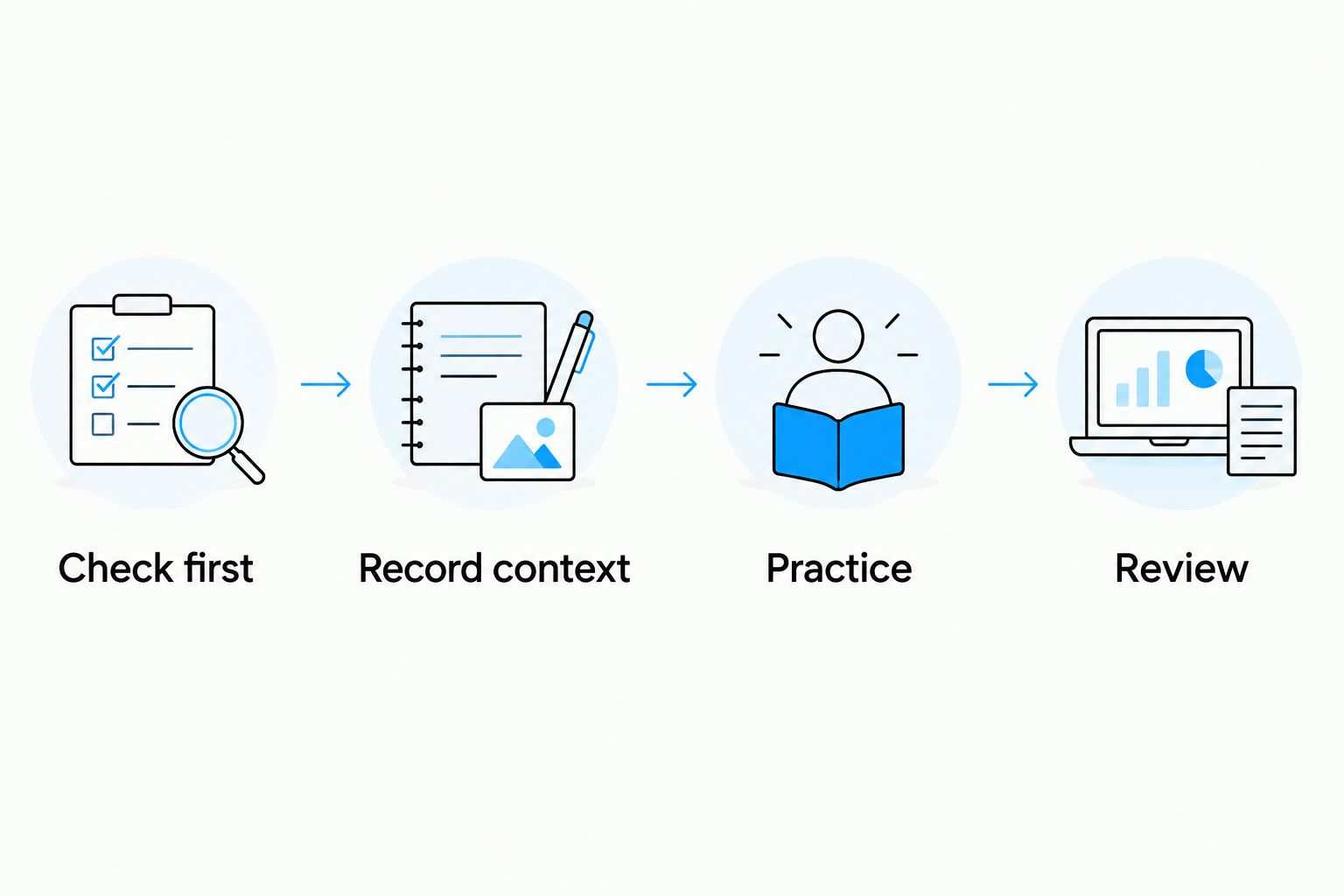
- Check first: Complete one comfortable check-in per day at a consistent point in your routine. Record whether it happened before or after training.
- Record context: Note an unusually hard session, prolonged sitting, or a different setup when it applies. Describe what happened without claiming it caused the score.
- Practice: Follow your chosen mobility routine. If you use Pliability, treat its guided video as the practice component, not as proof that your range improved.
- Review: After 7 days, read the individual ratings and context notes before looking at the total. Look for repeated observations, not a single unusually good day.
Expected result: You can distinguish consistent practice from a change in how movement feels.
The sequence is simple: Check first, Record context, Practice, Review. Keep the check before the routine if your goal is to compare how you start each day.
A higher total is not automatically a better training decision. For example, an unchanged total can hide a shoulder rating that fell while an ankle rating rose. Read the components before deciding what needs attention.
Second workflow: check movement on rest days
You do not need a recorded workout to keep a useful movement log. On rest days, retain the check and leave the session field marked No session.
- Repeat the same comfortable checks at your usual time.
- Record the individual ratings and any relevant context.
- Leave workout duration blank if no workout took place.
- Review rest-day entries alongside training-day entries without assuming either should score higher.
Best for: Readers who want a daily observation habit without turning every check-in into a workout.
The advantage is continuity. The limitation is that subjective ratings still reflect your judgment, so avoid treating a rest-day total as an objective readiness clearance for your next hard session.
Troubleshooting
Your workout is missing from Health
Check that you ended the workout and that the paired devices have had an opportunity to sync. Then search Workouts in Health and check the date rather than relying only on a dashboard summary.
If you use another app to write workout data, review that app's Health access. Do not add a manual workout until you have checked whether the original record exists; otherwise, you risk creating a duplicate.
The same session appears twice
Check whether both the Watch and another app recorded the session. Compare the times and data sources before removing anything, and decide which recording method you will use for future sessions.
Record once whenever possible. Two overlapping records do not mean you completed two separate mobility sessions.
Your daily score changes too much
Check the setup first: foot position, chair height, support, timing, and how you interpreted the rating. A changed test is not a clean comparison.
Return to the written baseline. If you deliberately change a check, mark the change and begin a new comparison period instead of treating the new rating as continuous with the old one.
A walking metric is absent
Not every Apple Health walking metric comes from Apple Watch, and recording requirements differ by metric. Open the specific metric's information in Health to check its requirements.
Do not fill an absent walking measurement with your manual mobility score. They describe different things.
Movement hurts during the check
Stop the painful movement rather than repeating it to obtain a number. Leave the rating unscored and describe the symptom without diagnosing it.
A tracking routine is not treatment. New, persistent, or worsening symptoms deserve assessment rather than a more demanding stretching target.
Customize your workflow
Once the basic log is consistent, change the focus—not the scoring rules. Choose a movement relevant to your training, document its setup, and begin a fresh baseline when you replace an existing check.
Pliability provides guided mobility, stretching, and recovery routines. Use guided practice for the work and your log for the observations. The benefit is a clear daily habit; the limitation is that the manual score cannot verify technique or quantify joint range.
For a useful 2026 review, ask: Did you practice? Did the same movement feel different? Did the setup change? Those answers are more actionable than an unexplained total.
FAQ
Does Apple Watch automatically give me a daily mobility score?
Apple Watch does not provide the manual whole-body mobility score described in this guide. This workflow combines a recorded workout with separate, self-rated movement checks.
What's the best way to use Apple Watch mobility tracking?
Use Apple Watch mobility tracking to record practice, and keep a separate log for how repeatable movements feel. Workout duration and movement quality answer different questions.
Can Pliability turn my Apple Watch workout into a mobility score?
This workflow does not turn a Pliability session or Apple Watch workout into an automatic mobility score. Record the movement ratings yourself and keep them separate from workout data.
Is Apple Health Walking Steadiness the same as flexibility?
No. Walking Steadiness concerns walking stability, not whole-body flexibility or individual joint range. Do not substitute it for an ankle, hip, or shoulder assessment.
Should I check mobility before or after stretching?
Check before stretching if you want to compare how you start each day. A post-session check answers a different question, so label it separately.
How often should I record my personal movement score?
This workflow uses one check-in per day under similar conditions. Skip any movement that causes pain and mark missing checks instead of inventing a score.
Does a higher score mean I am ready for a hard workout?
No. A higher self-rated movement score is not clearance for hard training. Consider symptoms, fatigue, training demands, and appropriate professional guidance separately.
One last thing
Your most useful entry can be a missing score with a clear reason. Writing that you stopped because a movement hurt preserves information; forcing a number erases it. Keep the record honest, and let comfortable, controlled movement—not the total—guide the habit.